
CMXFeatures
Every feature of CMX, in twelve groups.
Each card says what CMX does. Core or Enterprise is marked on each.
Import
Bring in the whole back-book as one job, from wherever it sits today.
Bring in contracts from anywhere.
Drop PDFs, Word files, images or one ZIP, or forward them to your workspace’s email-in address. Add the old register as a CSV or Excel manifest: its values take precedence and any mismatch is flagged.
The problem: signed contracts sitting in folders, mailboxes and an old spreadsheet.
CoreDuplicates are caught.
Exact duplicates are linked and never processed twice. A near-duplicate is flagged with a link to the likely original, and a person decides.
The problem: the same contract filed three times.
CoreAmendments find their parent contract.
A document that reads as an amendment, addendum or schedule is proposed to its parent; a person confirms the link.
The problem: amendments and schedules that float loose.
CoreUnsigned copies are held back.
With no signature found, confirmation waits for the signed copy, or a person confirms it unsigned with a reason.
The problem: unsigned copies treated as contracts.
CoreMissing pages are flagged.
Gaps in page numbering and a truncated last page are flagged before anyone relies on the copy.
The problem: scans with missing pages.
CoreFiles that aren’t contracts are set aside.
They are marked, kept for a set number of days, and can be restored from the job.
The problem: files that are not contracts.
Core
AI assistance
AI proposes, your people decide. Every proposal shows its working, and a person makes every decision that counts.
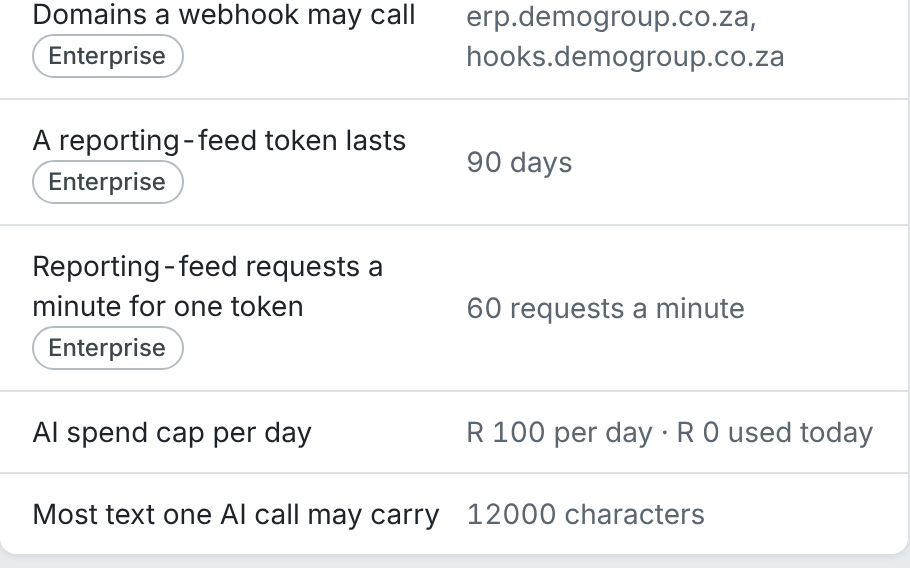
A person confirms each value
Each proposed value waits in the Confirm queue for a person. Nothing counts until someone confirms it.
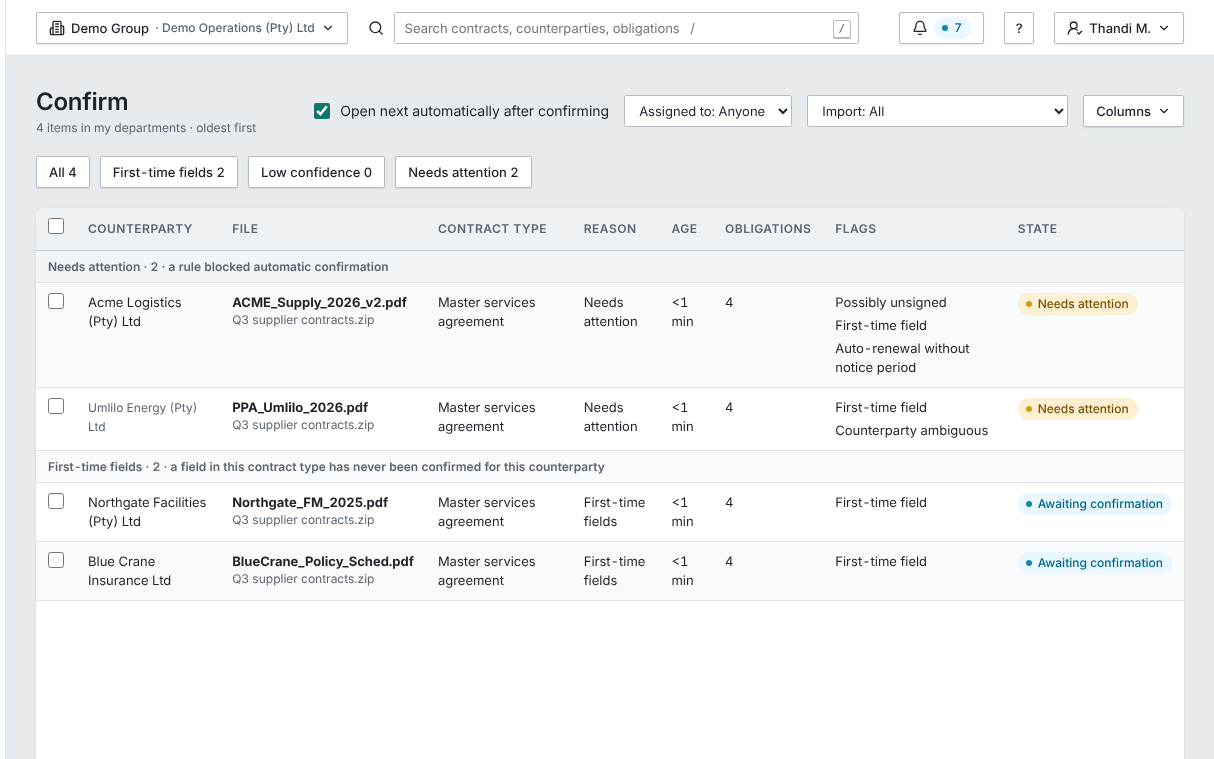
Risk, with the reason shown
The AI proposes each clause position with its reason and the clause it read. The level is a fixed calculation.
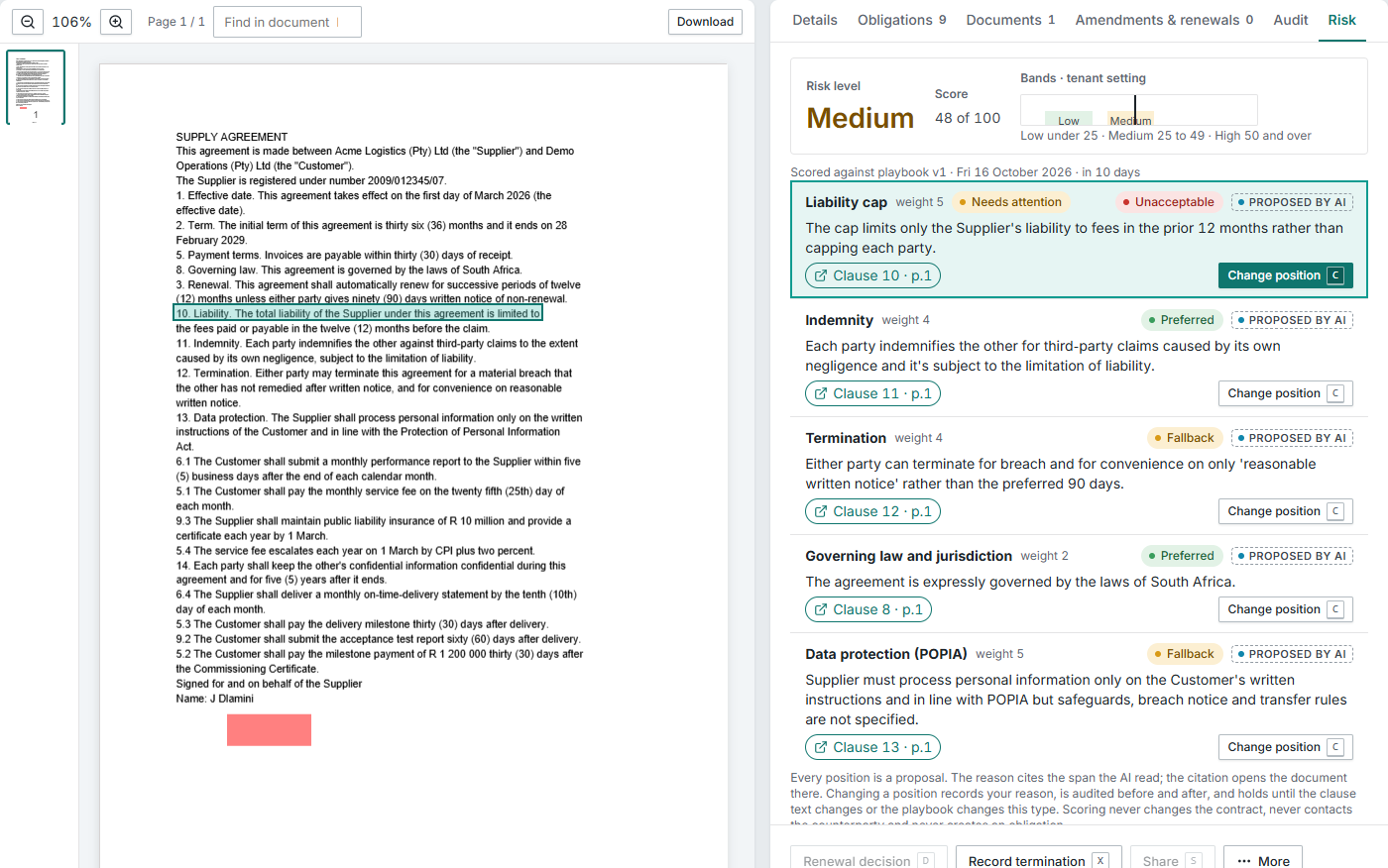
A daily AI spend cap
A daily AI spend cap you set. At the cap, extraction pauses until midnight and everything else carries on.
1 of 3
AI reads every contract.
AI classifies each contract and extracts its fields, and every obligation as its own record.
The problem: reading every contract by hand takes weeks.
CoreEvery value shows its source.
Every value points to its page and words, with Show in document. A value it cannot ground is left empty, never guessed.
The problem: AI output nobody can check.
CoreA person confirms what counts.
Dates, amounts and parties are confirmed by your people, always the first time for a counterparty and contract type.
The problem: a model signing off a date.
CoreIt learns from your corrections.
A correction teaches the next extraction for that counterparty and contract type, in your workspace only.
The problem: making the same correction again and again.
CoreRisk scored against your playbook.
The AI proposes a position per clause against your playbook (the position you accept on each kind of clause), with its reason and the clause cited. The level is a fixed calculation, never a model’s opinion.
The problem: not knowing which contracts carry the risk.
EnterpriseAnswers with every statement cited.
Ask across all your contracts, or one, and get an answer with every statement cited. A statement with no citation is removed.
The problem: a simple question takes an afternoon.
EnterpriseAI kept in bounds and on budget.
It never sees a contract the asker cannot open. Contract text is data, never instructions. Zero retention and no training on your data. A daily spend cap you set.
The problem: AI that leaks, or runs up a bill.
CoreEnterprise
Extraction and confirmation
The document beside its values, every value marked on its page, and a person confirming what counts.
Bring in the whole back-book
One import for the whole back-book, with progress, failures and a needs-attention list.
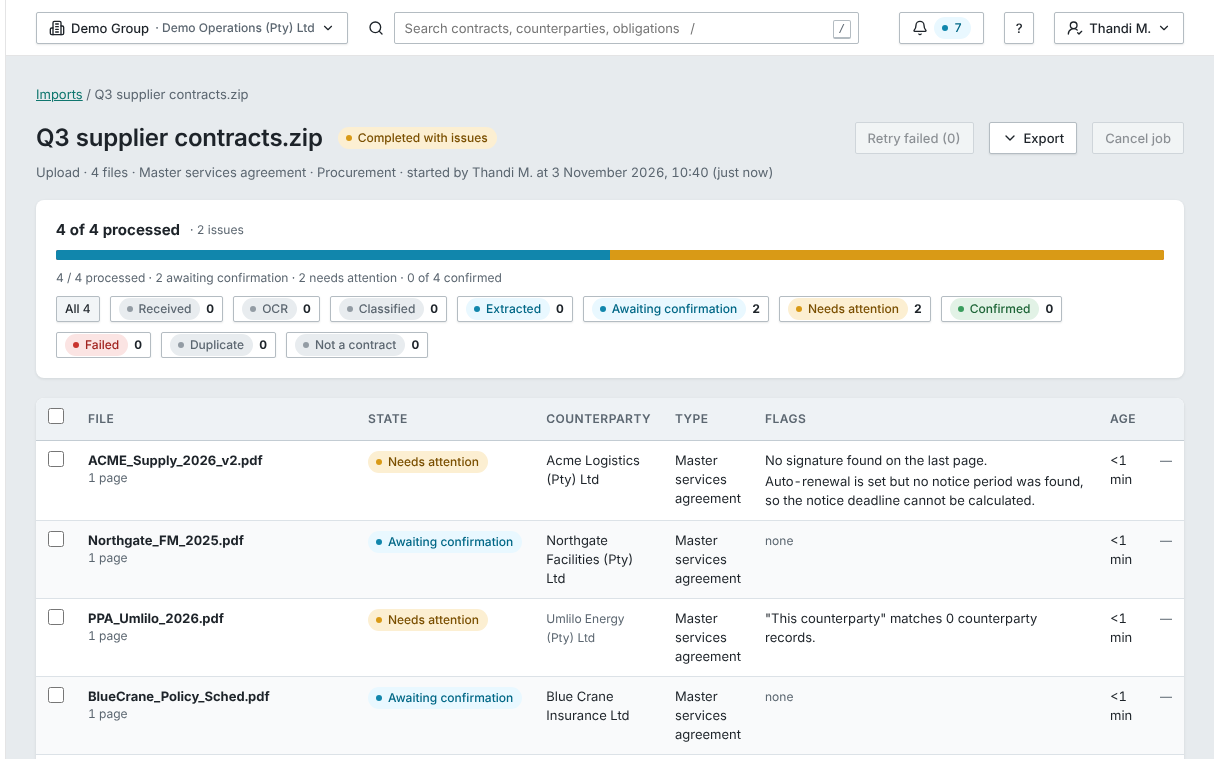
A person confirms each value
Each proposed value waits in the Confirm queue for a person. Nothing counts until someone confirms it.
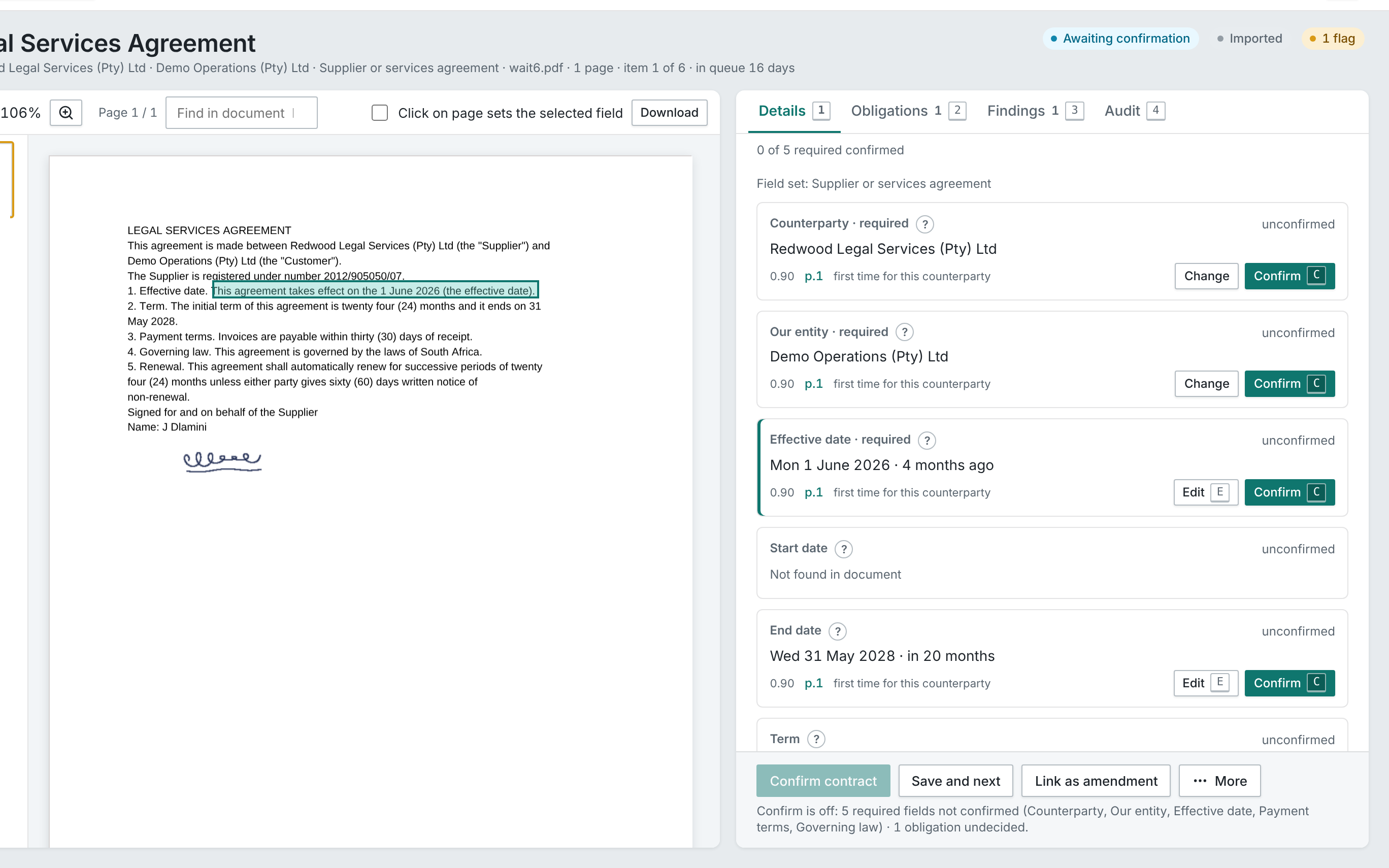
A value, marked on its page
Click a value and CMX marks the words it came from on its page, so the person confirming it can check it there.
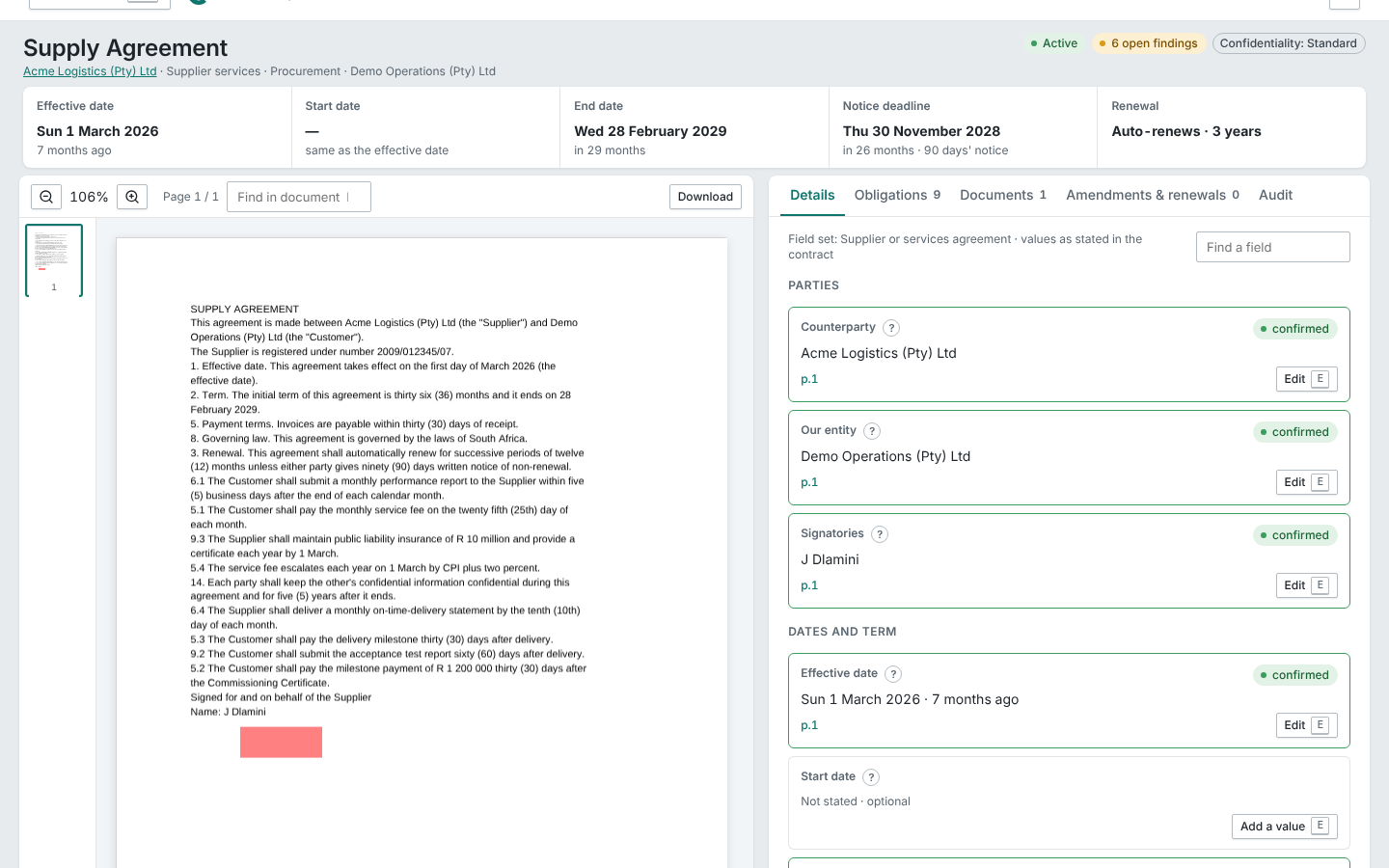
Confirmed, active, and by whom
Once a person confirms it, the contract is active in the register, and its record shows who confirmed it and when.
1 of 4
The right fields for each contract type.
Per type: parties, our entity, effective, start and end dates, notice period, auto-renewal, term, value and currency, payment terms, escalation, governing law, liability cap and termination rights.
The problem: every contract type has different fields.
CoreReview beside the document.
The document sits beside the values with each span highlighted. Accept, edit, split, merge or reject each obligation, and confirm the fields that agree in one step, on a phone too.
The problem: slow review.
CoreYour companies and counterparties, matched.
Our entity is found by registration or VAT number, a counterparty by registration number, then name and aliases. Ambiguity stops the item; nothing merges silently.
The problem: your own companies not recognised.
CoreImpossible dates are caught.
An end before the start, a notice deadline after the end, or auto-renewal with no term is flagged, and alerts stay off until it is fixed.
The problem: dates that contradict each other.
Core
Obligations and owner roles
Every obligation in every contract becomes a record owned by a role, with a person in that role, cover, evidence and verification.
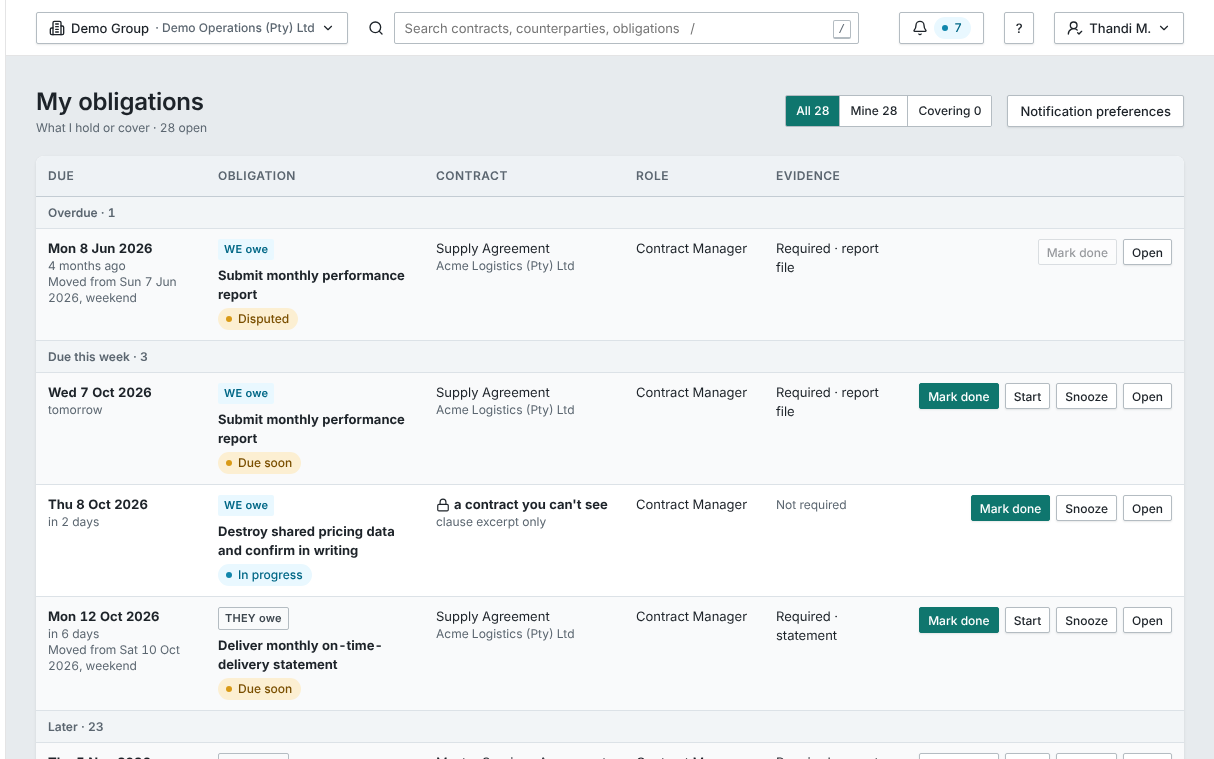
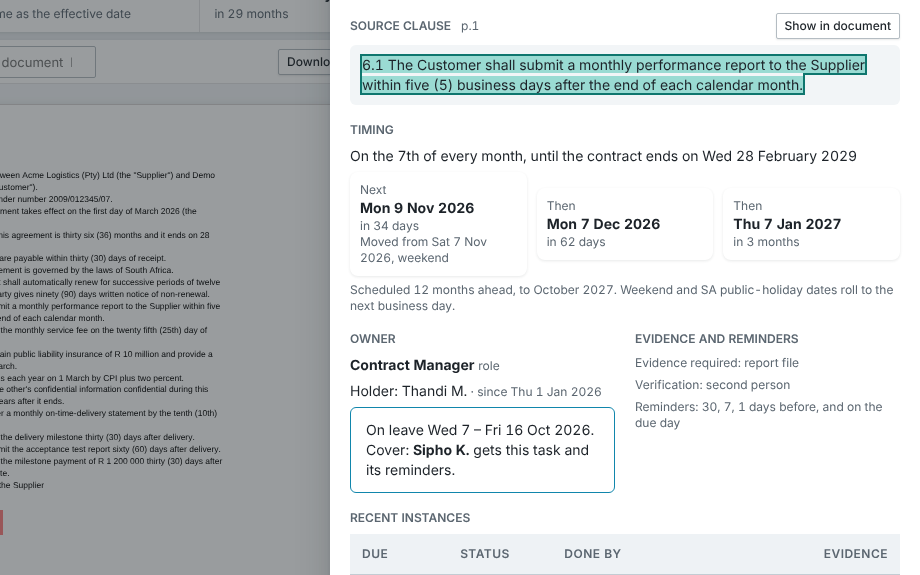
Each obligation shows its words
Each obligation shows the words it came from. Show in document opens the page.
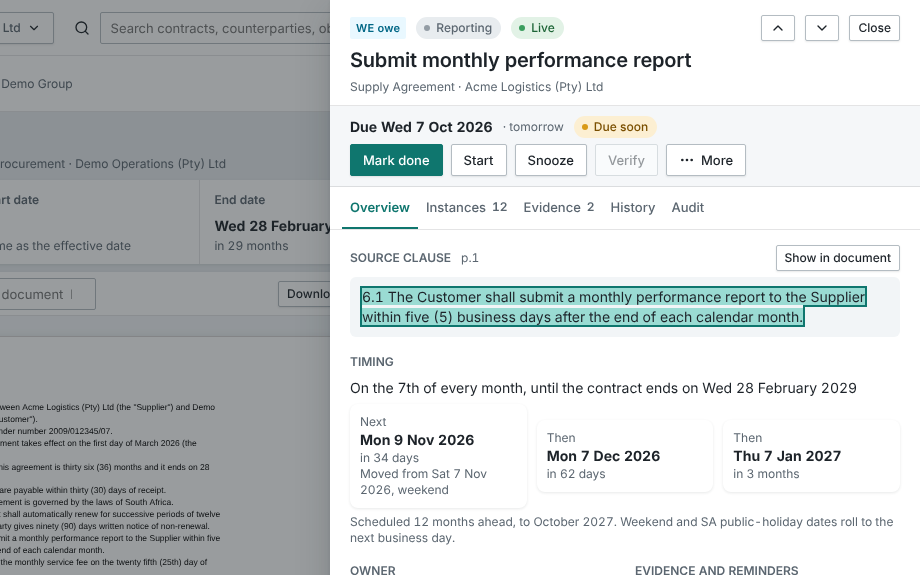
Obligations owned by roles
Each obligation is owned by a role and says what evidence it needs. Someone in that role who can’t open the contract still sees the clause.
Cover while someone is away
Leave and cover are recorded: the person covering sees the work as covering for a colleague, and it goes back the day after they return.
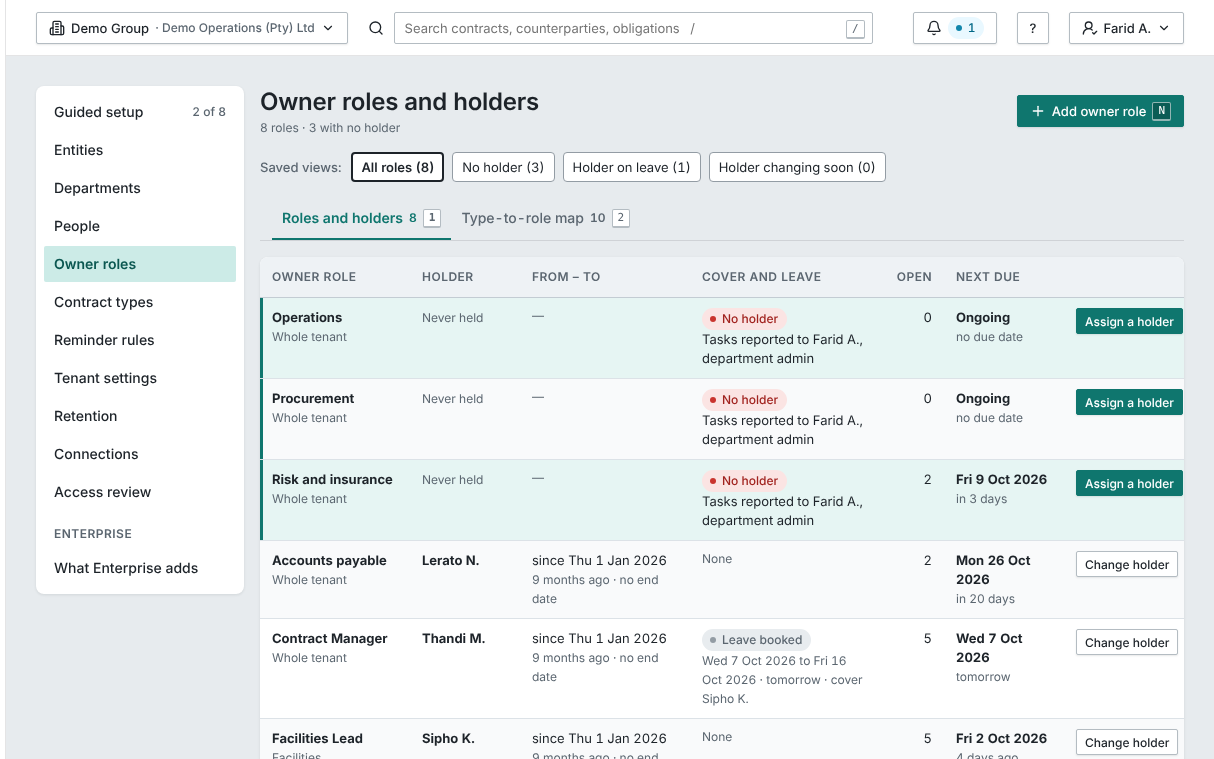
Roles, and the people in them
Obligations belong to roles. A role with nobody in it is reported to the department admin.
1 of 4
How an obligation moves
- 1ProposedAI reads the clause and proposes the obligation, pointing to its words.
- 2ConfirmedA person accepts it and sets the role that owns it.
- 3RemindedThe person in that role is reminded 30, 7 and 1 days before, on business days.
- 4DoneThey mark it done with the evidence its type requires.
- 5VerifiedA second person, never the one who did it, verifies or sends it back.
Obligations belong to roles, not people.
Every obligation is owned by a role. A person holds it for a period, the next person in the role takes over open work from a set date, leave and cover are recorded, and a role with nobody in it is reported daily.
The problem: obligations live in people’s heads, and a resignation loses them.
CoreBoth sides’ duties are tracked.
Each obligation records who owes it: us, or them. Supplier SLA reports, rebates and insurance certificates are tracked like your own.
The problem: the other side’s duties going unwatched.
CoreEvery kind of due date.
Fixed, recurring, relative to an event, or ongoing. Recurring obligations are scheduled 12 months ahead, and a due date on a weekend or public holiday moves to the next business day.
The problem: due dates that are not simple.
CoreDone means proven.
A type that needs evidence can’t be completed without a file, note or link, and a second person, never the one who did it, verifies or sends it back.
The problem: “done” without proof.
CoreA waiver needs a reason and an approver.
A waiver needs a reason and an approver who isn’t the person in that role. A snooze never moves the due date.
The problem: waivers without accountability.
CoreAmendments update the obligations.
An amendment closes the obligations of the clause it changes and proposes replacements for a person to confirm.
The problem: amendments that silently change duties.
Core
Reminders, renewals and calendar
Reminders on your business days, and renewal alerts that count back from the notice deadline.
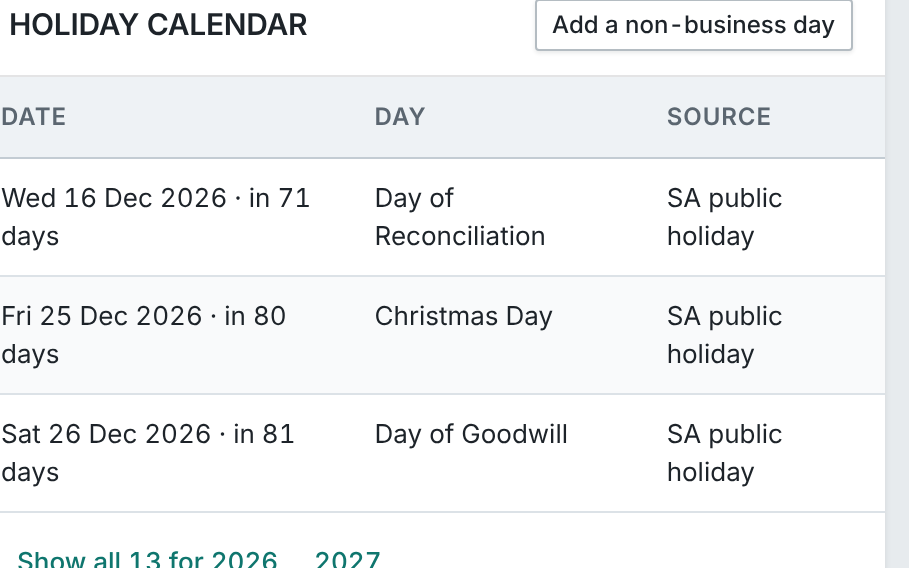
Reminders on time, on business days.
Lead times per obligation type: 30, 7 and 1 days and the due day by default. Overdue items escalate to the contract owner. A reminder that falls on a holiday goes the business day before.
The problem: reminders that arrive too late or never.
CoreRenewal alerts from the notice deadline.
Renewal alerts count back from the notice deadline at 90, 60 and 30 days. The decision is recorded with a reason, and an auto-renewing contract with no decision rolls forward, audited.
The problem: a missed renewal window.
CoreEach person picks their channels.
Each person picks channels per kind: in-app, email, and Teams or WhatsApp where connected, with a daily or weekly digest. Overdue items always get through. Teams and WhatsApp are set up per customer at go-live.
The problem: too much noise.
CoreDue dates in your calendar.
A Calendar view, and a feed to each person’s Outlook or Google calendar, set up per customer at go-live.
The problem: nothing in your calendar.
CoreA weekly summary every Monday.
An opt-in weekly digest on Monday at 07:00, by email and Teams, counted for each recipient.
The problem: no picture of the week ahead.
Core
Register, search and dashboard
One register across the group, and numbers that open the list they count.
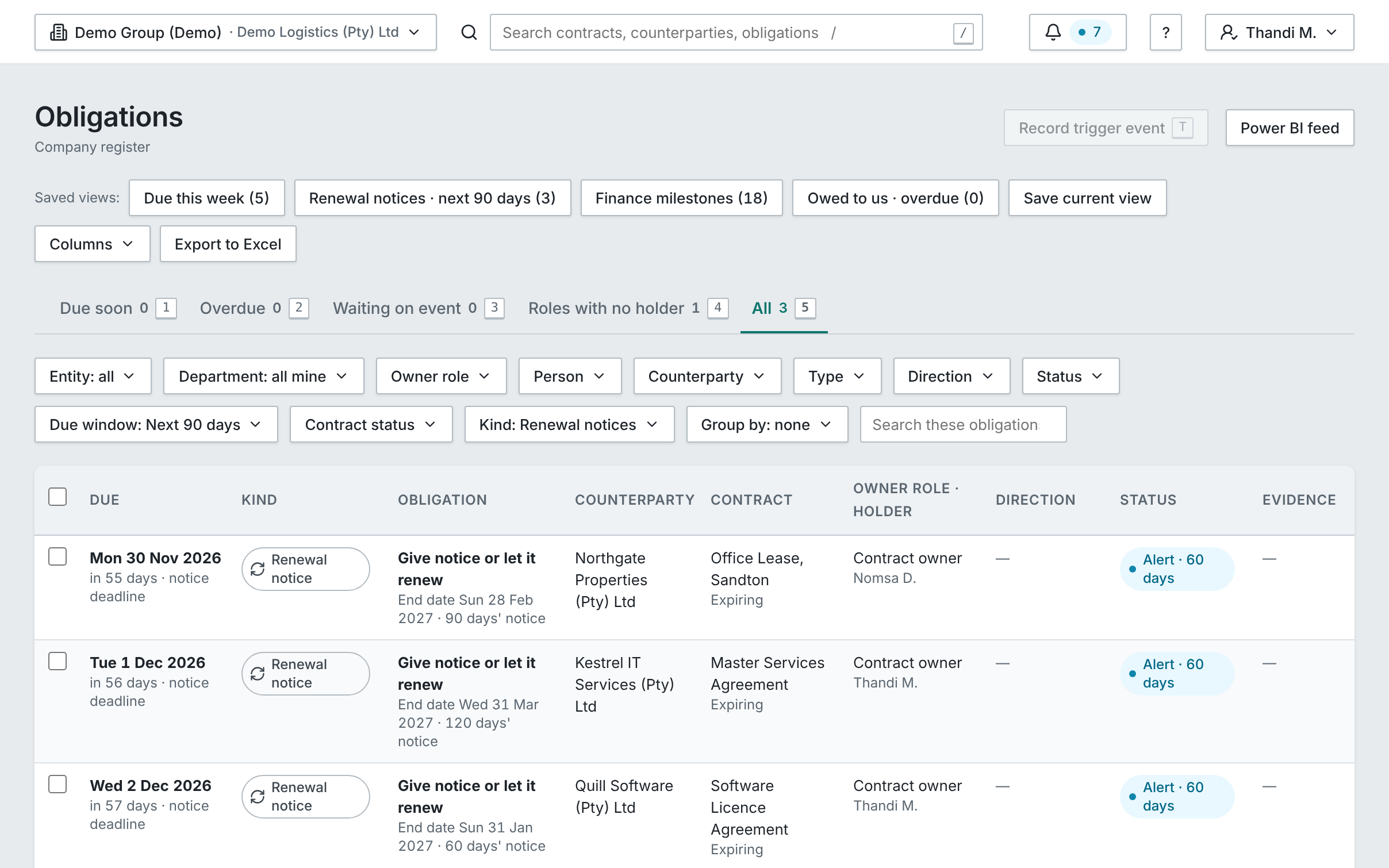
Every obligation in one list
Owed by you and to you, filtered, saved and exported, counting only what you can open.
Every counterparty in one list
Each counterparty with its contracts, what’s owed each way and the next notice deadline, counted only from the contracts you can open.
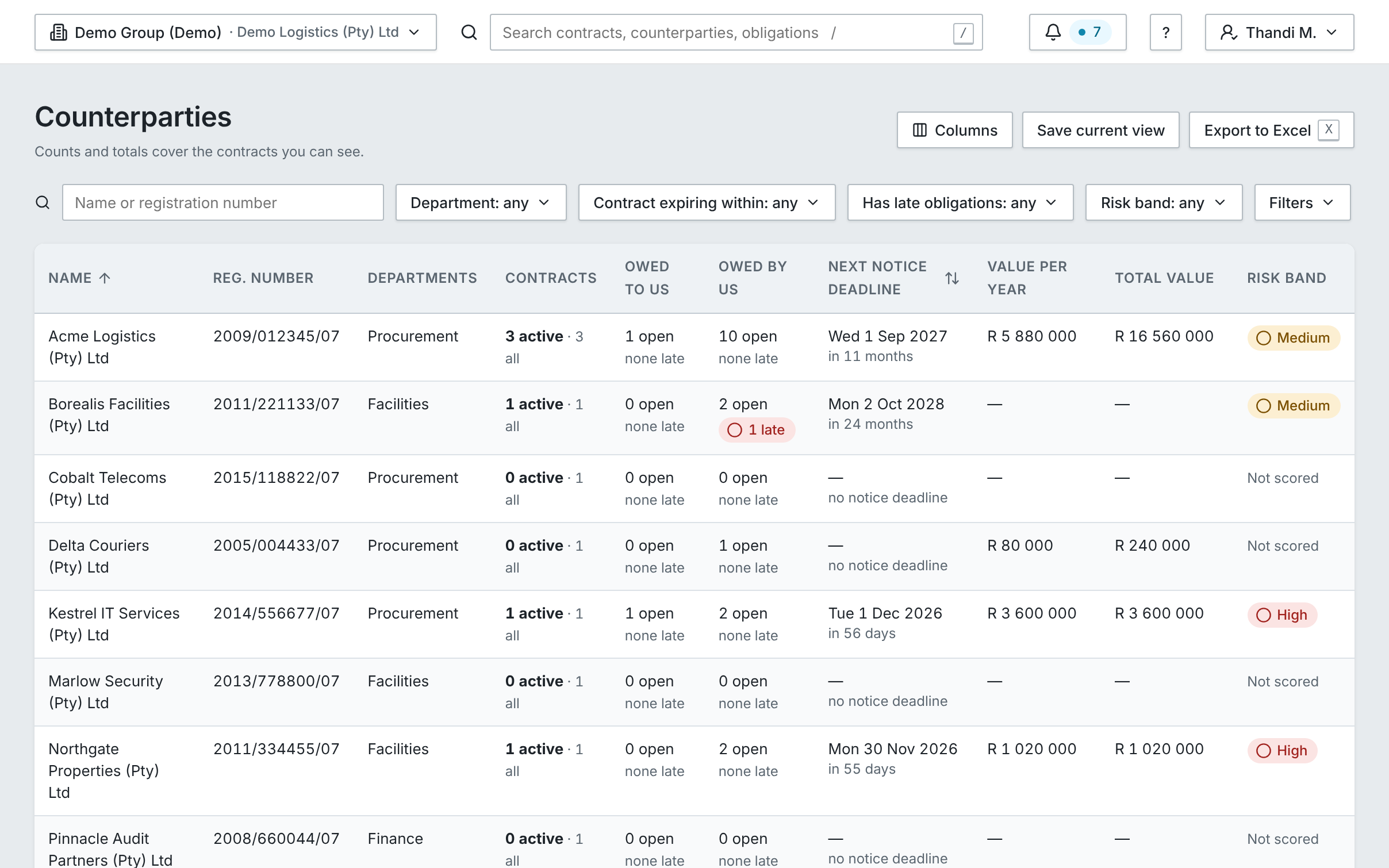
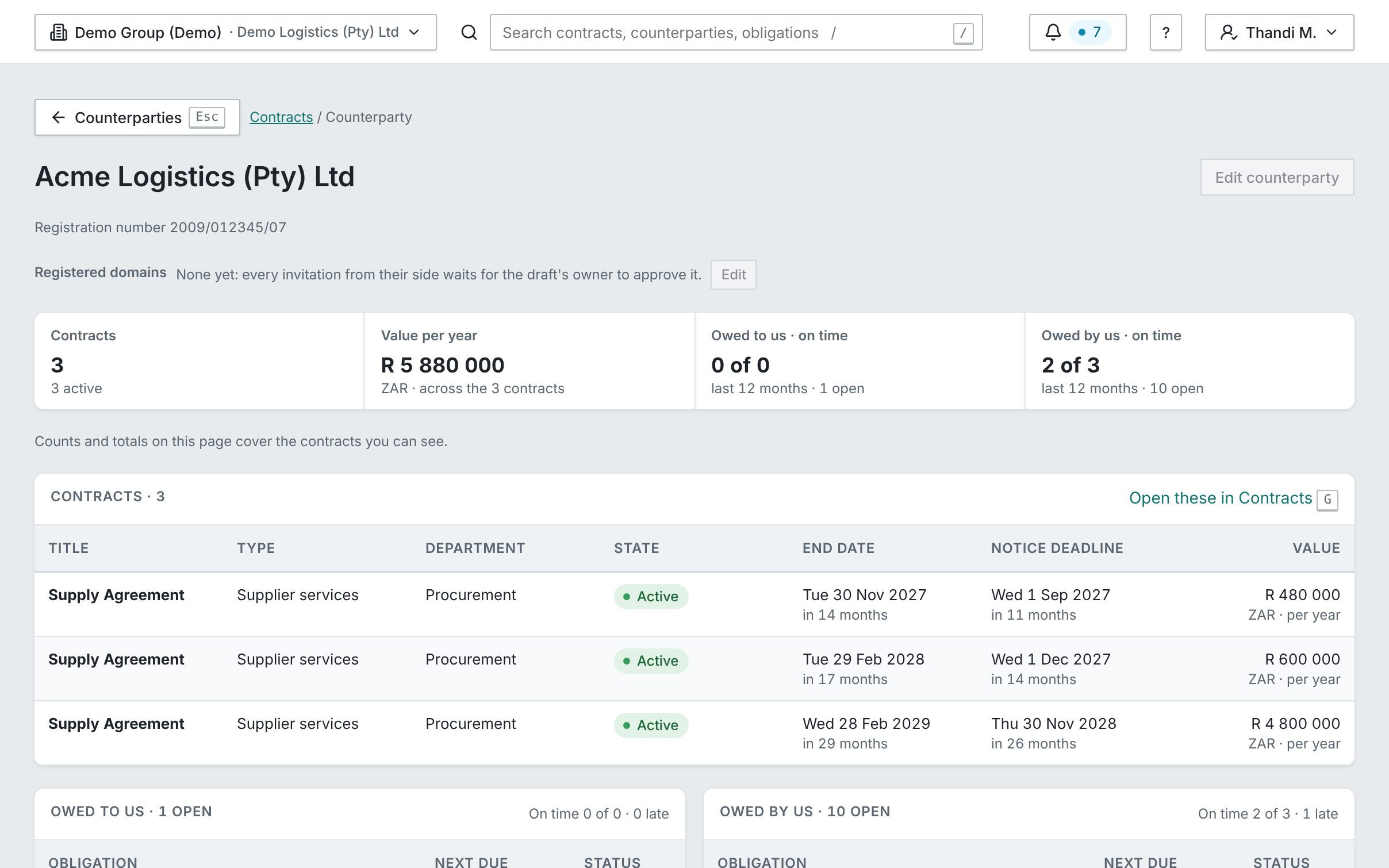
Each counterparty on one page
Its contracts, what it owes you and what you owe it, and how it performs.
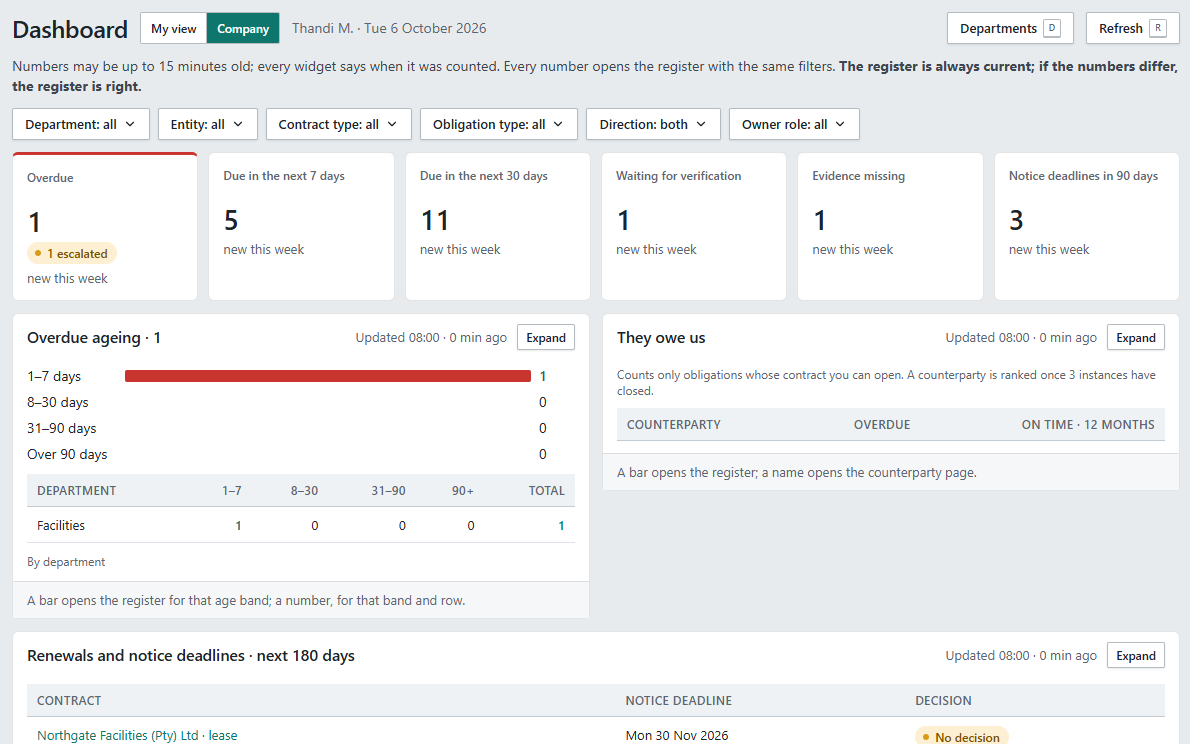
Every number opens its list
Every tile counts only what the viewer can open, and opens the register with that filter.
1 of 4
One register of every obligation.
A company register of every obligation you may see, with filters, saved views, grouping and Export to Excel.
The problem: no single view of what is owed.
CoreFind any contract you can open.
Keyword search and filters, and a contract record with its details, documents, obligations, amendments, access and audit.
The problem: hunting for a contract.
CoreEvery counterparty in one list.
Each one with its contracts, what’s owed each way and the next notice deadline, counted only from the contracts you can open.
The problem: no single view of who you deal with.
CoreEach counterparty on one page.
Its contracts, what it owes you and what you owe it, and how it performs.
The problem: a supplier’s contracts and duties scattered across the business.
CoreA dashboard for every manager.
The obligations dashboard in My, Team and Company views: overdue, due this week, waiting for evidence or verification, ageing, on-time rates and roles with nobody in them.
The problem: managers who can’t see the state of play.
CoreNumbers that open their list.
Every number counts only what you can open and opens the register with exactly that filter. The register is always current.
The problem: dashboard numbers nobody trusts.
Core
Access, departments and audit
Who sees what is decided in the database, and every change is recorded.
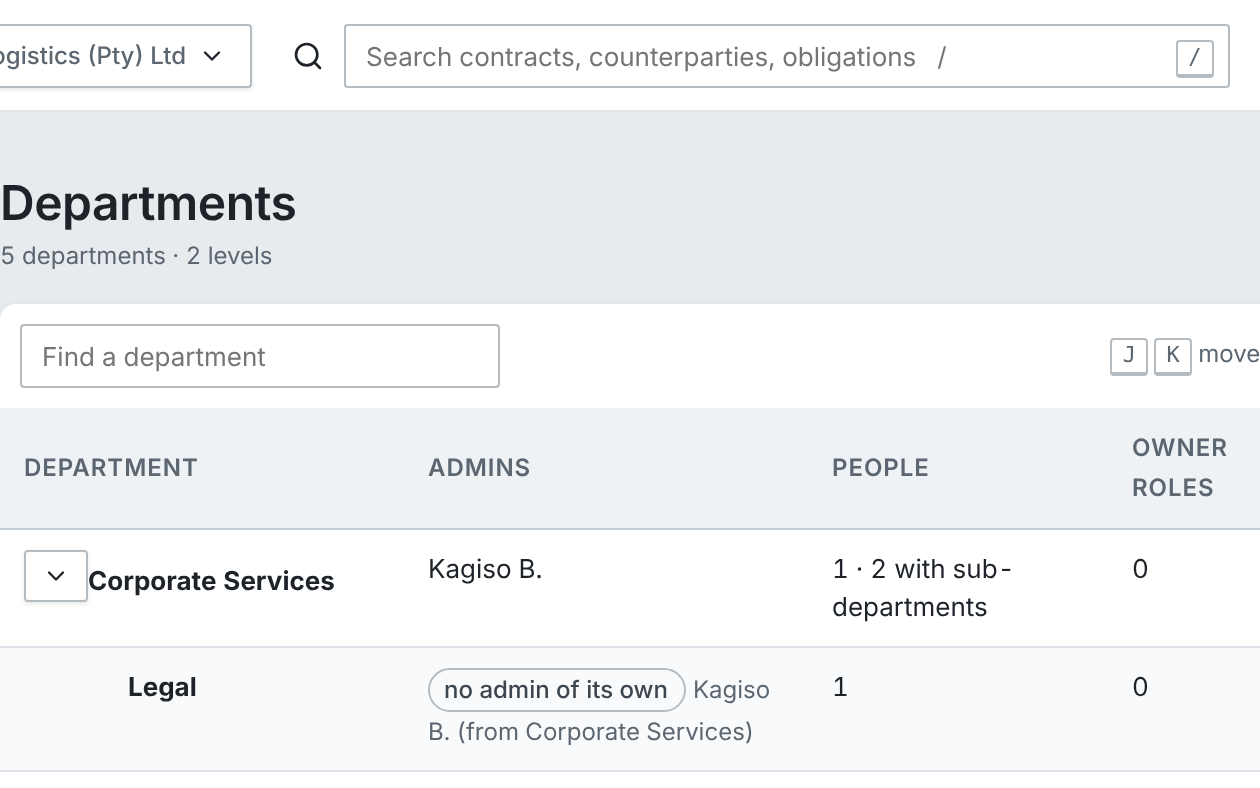
Each department runs its own
A department admin manages the people and roles in their own department only, and an admin role opens no contracts.
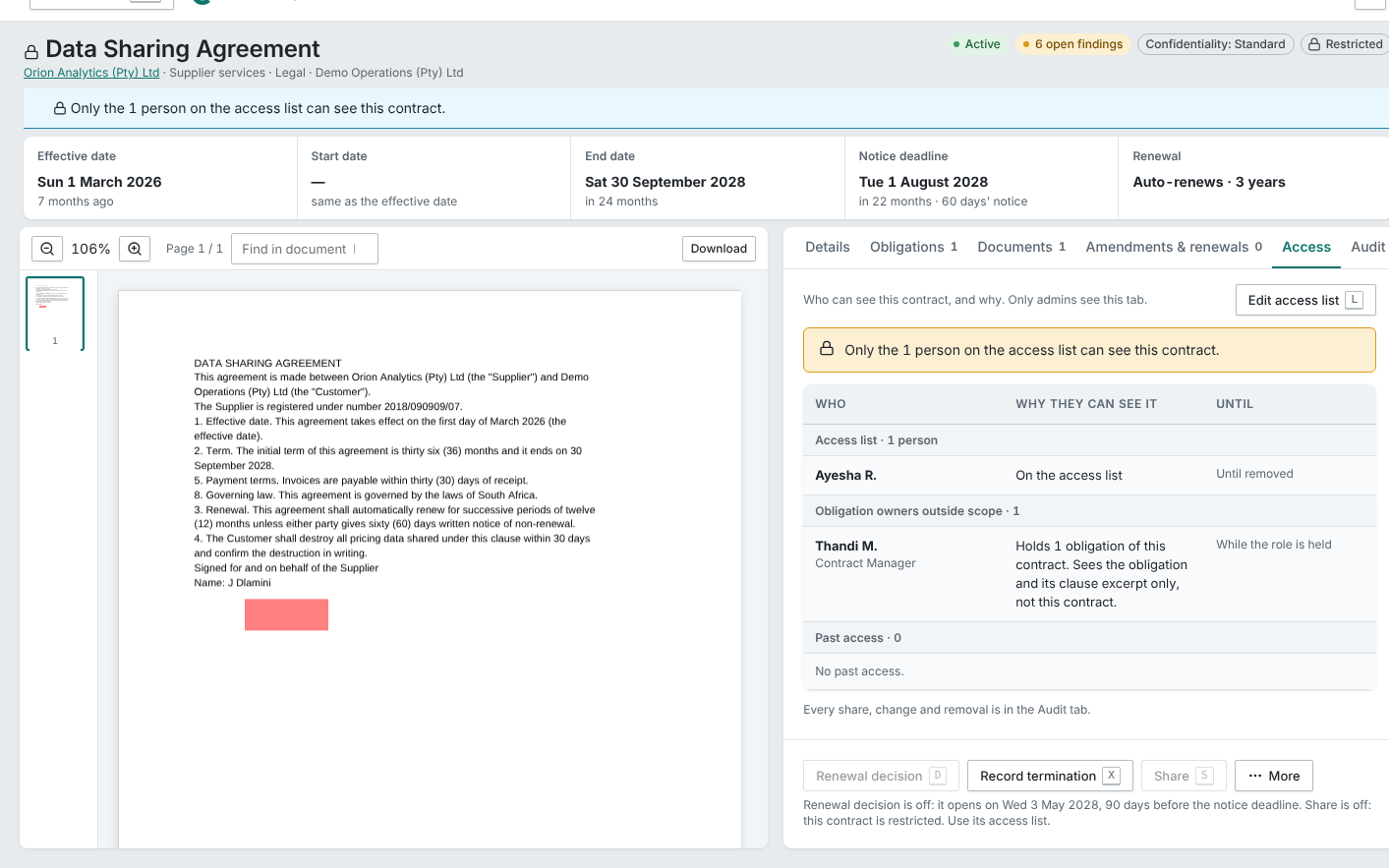
A restricted contract’s access list
A restricted contract carries a named access list, and anyone not on it never sees it in any list, count, search or answer.
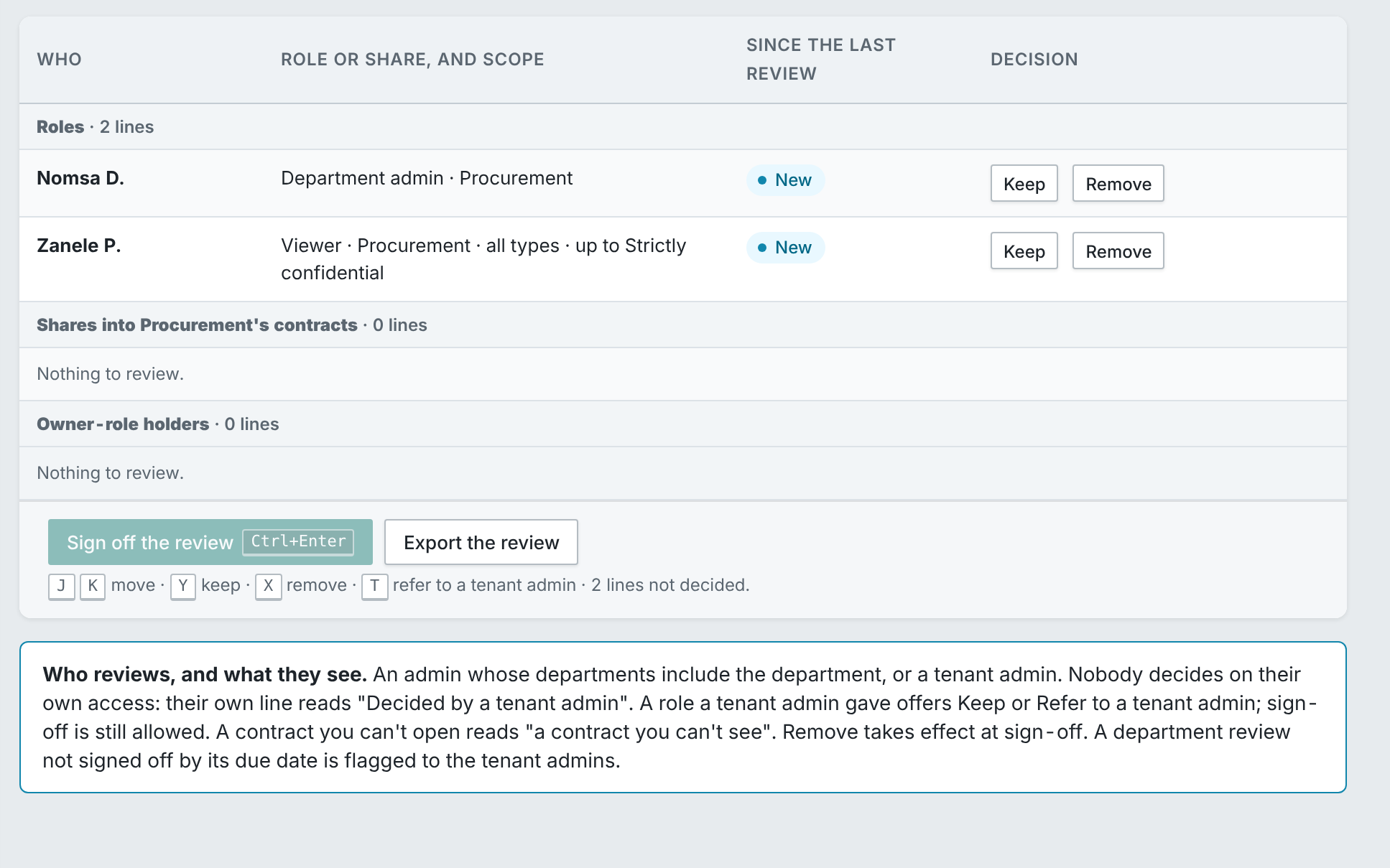
The quarterly access review
Each quarter every department reviews who can open what, keeps, removes or refers each person, and signs the review off.
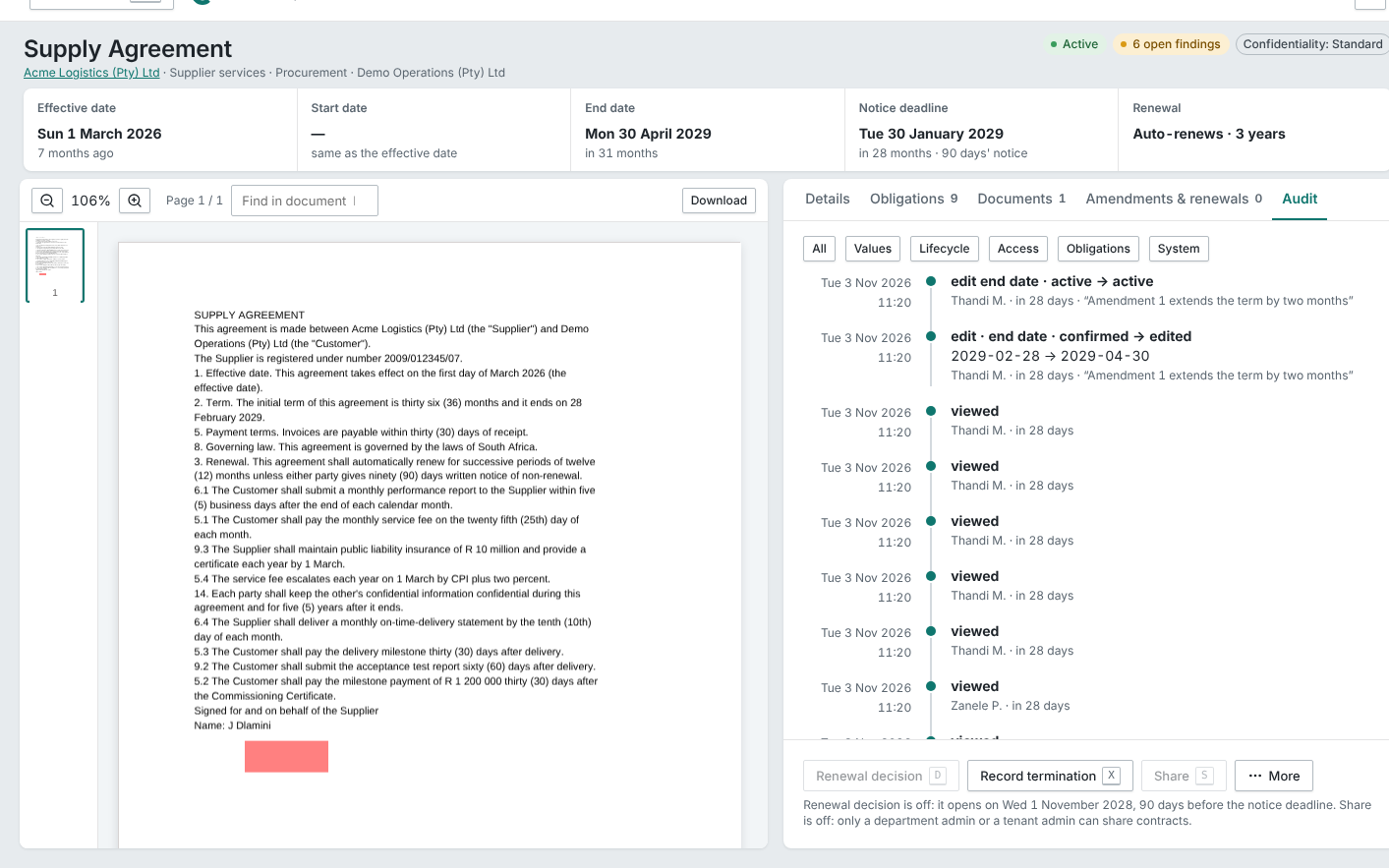
Every change on the contract
A contract’s Audit tab lists every change, with who made it and when, and nothing in it can be edited.
1 of 4
Restricted contracts stay hidden.
Who sees what is decided in the database, behind every list, search, count, export, notification and AI answer. A restricted contract carries a named access list and never appears for anyone not on it.
The problem: HR, M&A and executive contracts that must not leak.
CoreAdmins can’t read contracts.
Admin roles give no contract access. Department admins manage only their own department, and nobody changes their own roles.
The problem: admin tools that can read everything.
CoreLeavers are handed over in order.
Removing a person is an ordered, audited step: their roles, cover and access lists are reassigned first.
The problem: people who leave with work still assigned to them.
CoreA quarterly access review.
A quarterly access review per department: keep, remove or refer, then sign-off locks it.
The problem: nobody knows who has access to what.
CoreSettings you change yourself.
Contract types, fields, reminder rules, thresholds, non-business days, the AI spend cap and retention are settings with admin screens, and every change is audited.
The problem: settings only a developer can change.
CoreEvery change is recorded.
Every change is recorded, with who made it, and can’t be edited. Exports are recorded too.
Core
Insights
Risk, AI questions, value, board packs and Power BI, each counted only from contracts the viewer can open.
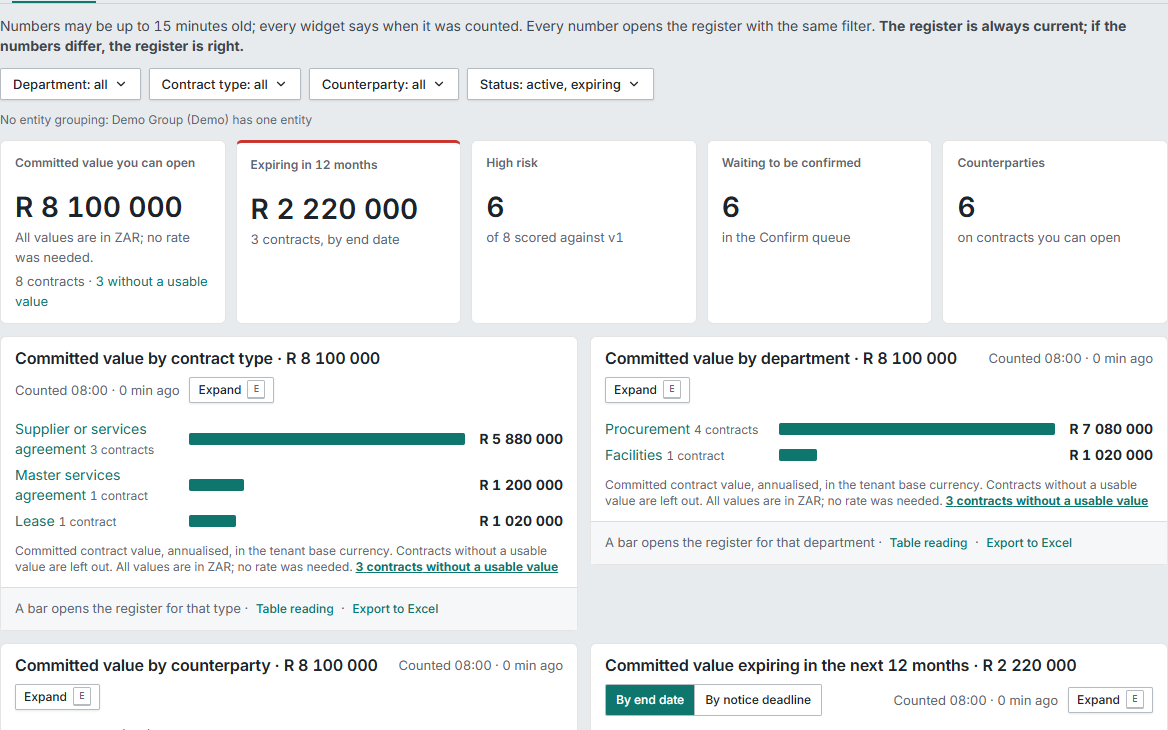
What your contracts are worth
Committed value by type, department and counterparty. Contracts without a usable value are counted, never shown as R 0.
Risk across your contracts
Risk across your contracts by clause type and counterparty, counted only from contracts you can open.
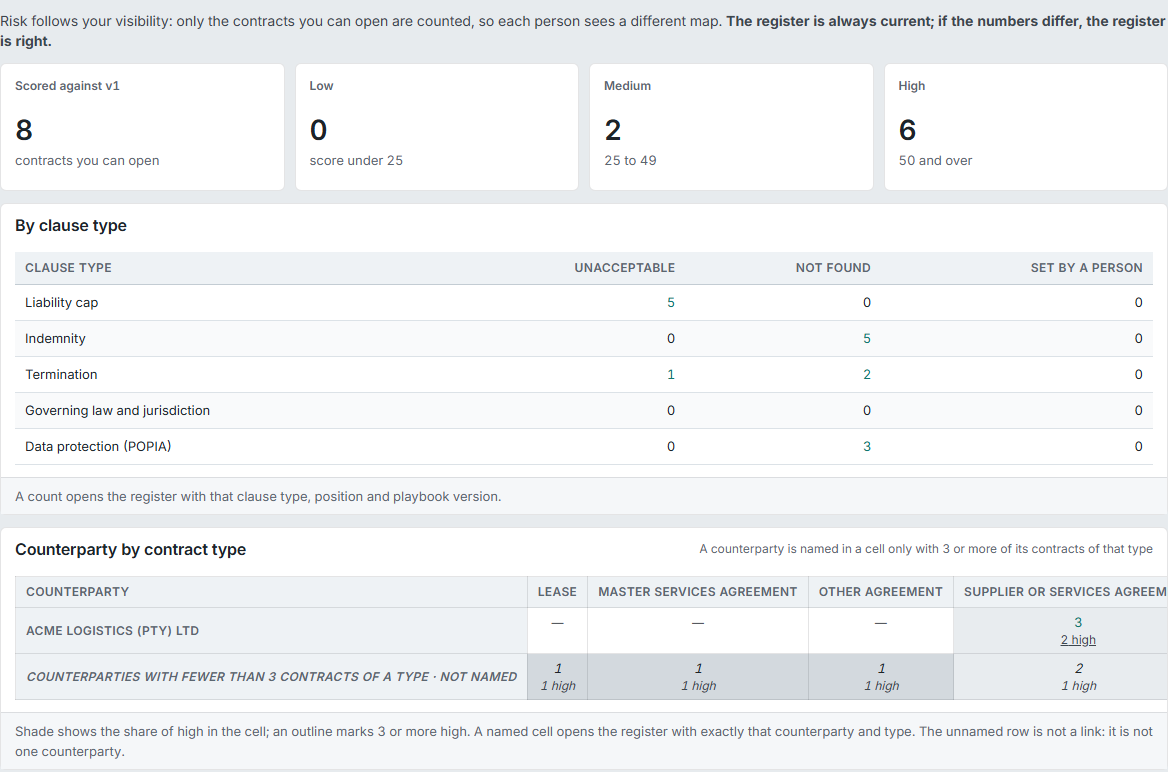
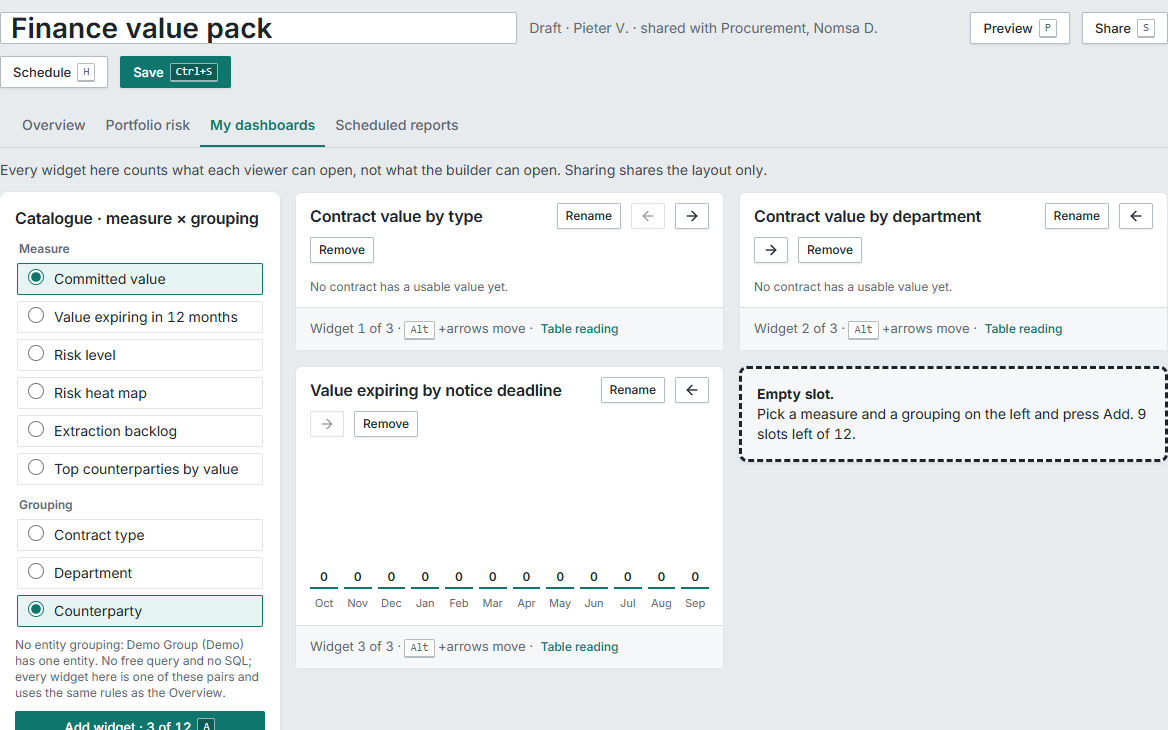
CMX’s own dashboards
Built from a fixed list of measures and groupings, with no other tool and no technical skills needed.
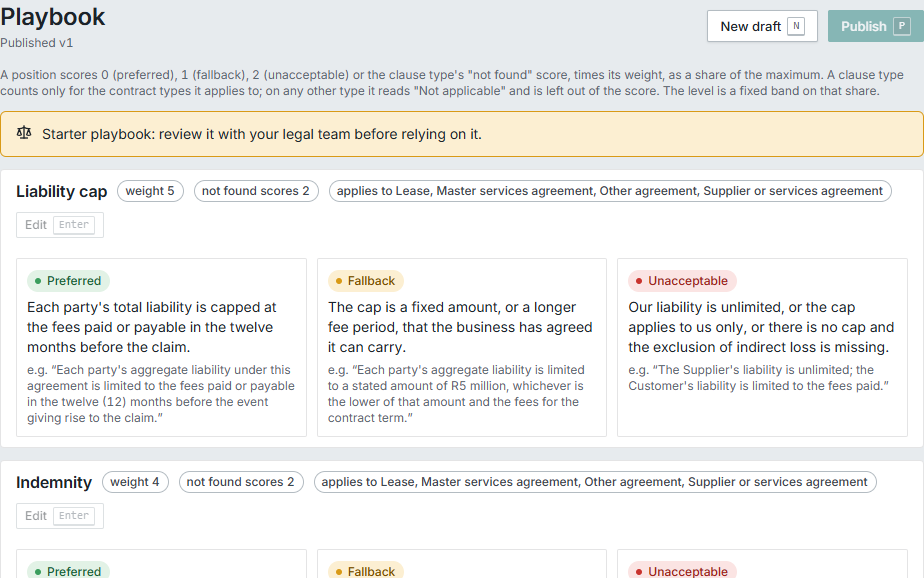
Your playbook, clause by clause
Your playbook: the position you accept on each kind of clause, with fallbacks and weights.
1 of 4
Your playbook, versioned and weighted.
A versioned playbook sets preferred, fallback and unacceptable positions per clause type, with weights. The AI proposes each position with a cited reason; a contract manager can change it with a reason, audited.
The problem: not knowing which contracts carry the risk.
EnterpriseA risk heat map.
A heat map by counterparty and contract type. A counterparty is named only when 3 or more of its contracts sit in a cell.
The problem: no view of risk across all your contracts.
EnterpriseAsk in plain words.
A question about fields becomes register filters you can edit. Anything else is answered from contracts you can open, every statement cited, quarters in your financial year.
The problem: questions that need someone to write a report.
EnterpriseCommitted value, counted honestly.
Committed value by type, department, counterparty and entity, value expiring in the next 12 months, and contracts without a usable value counted, never shown as R 0.
The problem: nobody knows what your contracts are worth.
EnterpriseCMX’s own dashboards.
CMX’s own dashboards, no other tool needed: up to 12 widgets from a fixed list, each viewer seeing only their own data.
The problem: every executive wants a different page.
EnterpriseBoard packs that send themselves.
Scheduled reports, weekly or monthly, in PDF and Excel, made for each recipient.
The problem: board packs made by hand every month.
EnterpriseA Microsoft Power BI feed.
For teams that already use Microsoft Power BI: a read-only feed. Each connection sees only what the person who set it up can open, expires after 90 days, and every refresh is audited.
The problem: the BI team wants the data.
EnterpriseAutomatic follow-up.
Automation rules on dates, overdue items and changes: create a task for a role, send a message or call a signed webhook. A rule never changes contract data and is previewed on the last 30 days first.
The problem: follow-up that depends on memory.
Enterprise
Approval steps
Governance on waivers and renewal decisions, without a workflow project.
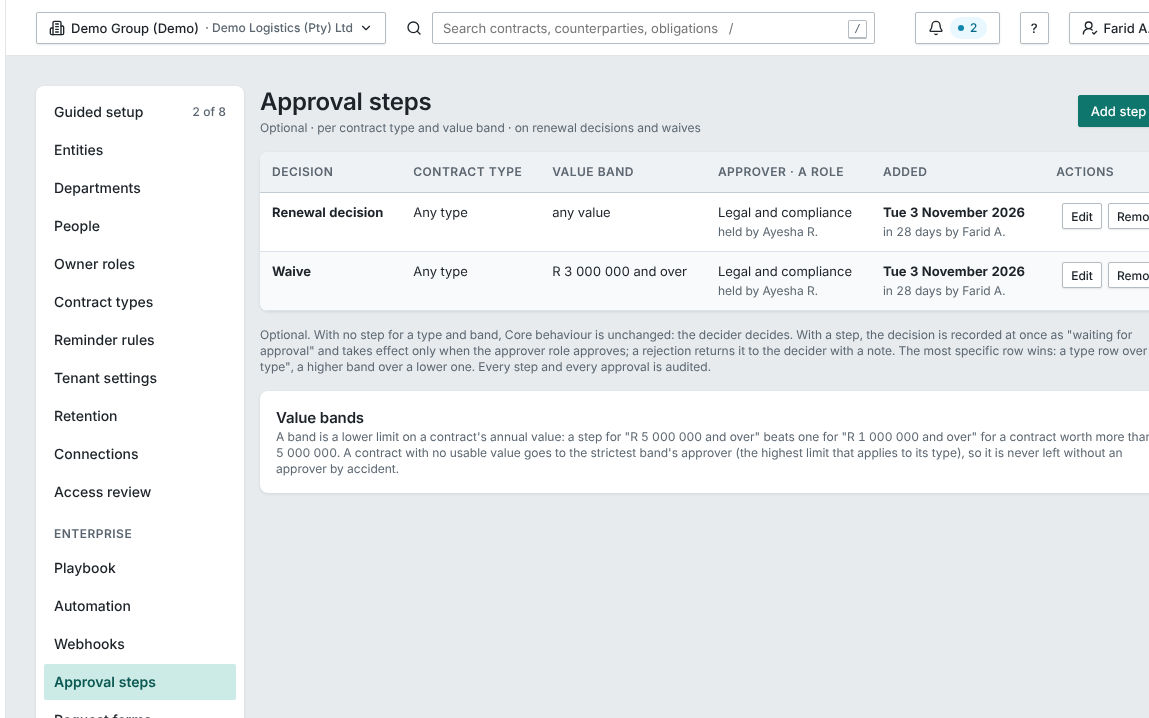
Approval steps on waivers
Approval steps on waivers and renewal decisions, by contract type and value band, with a role as the approver.
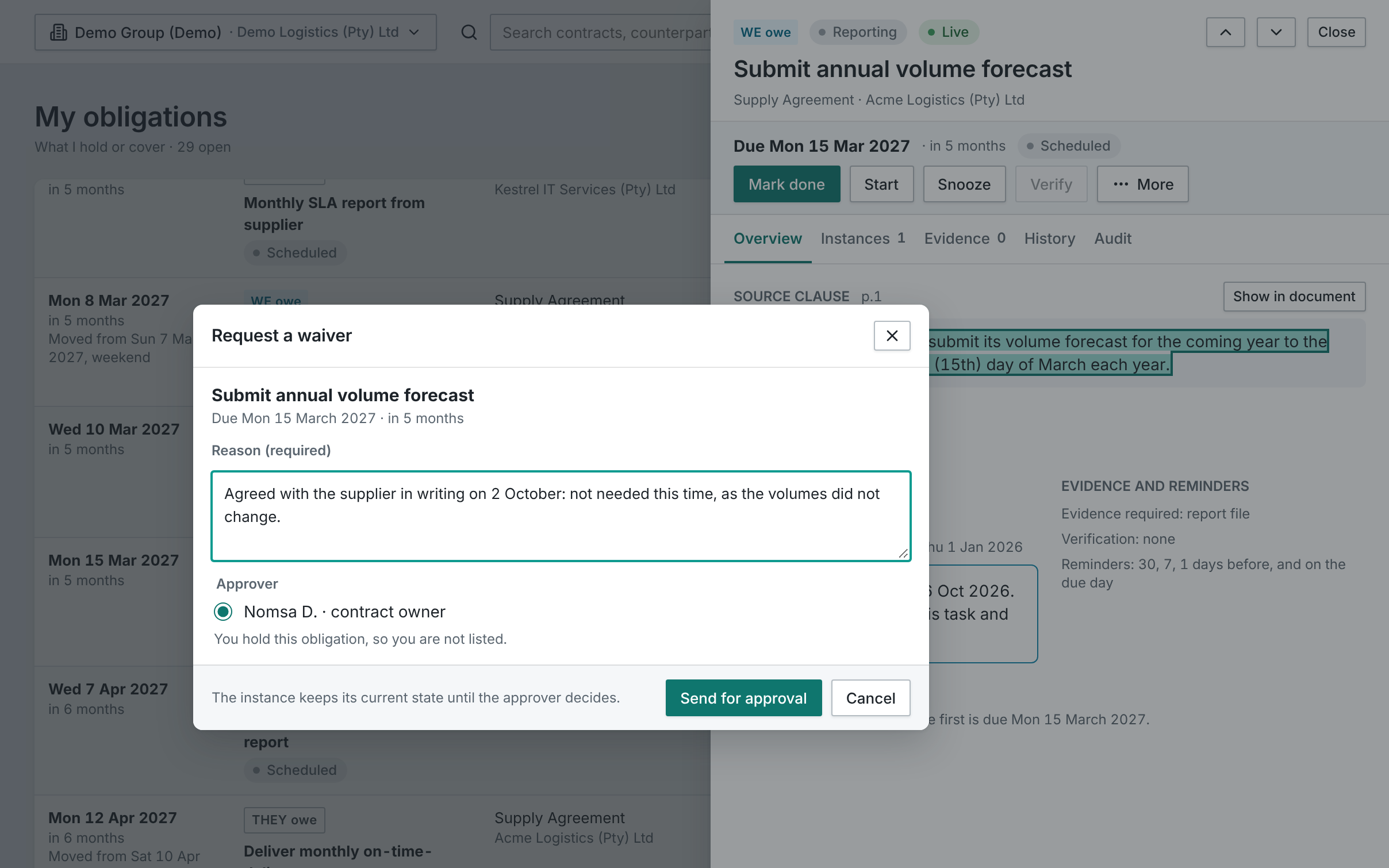
A waiver, with its reason
A waiver needs a reason and an approver, the contract owner or a department admin, never the person in the owner role.
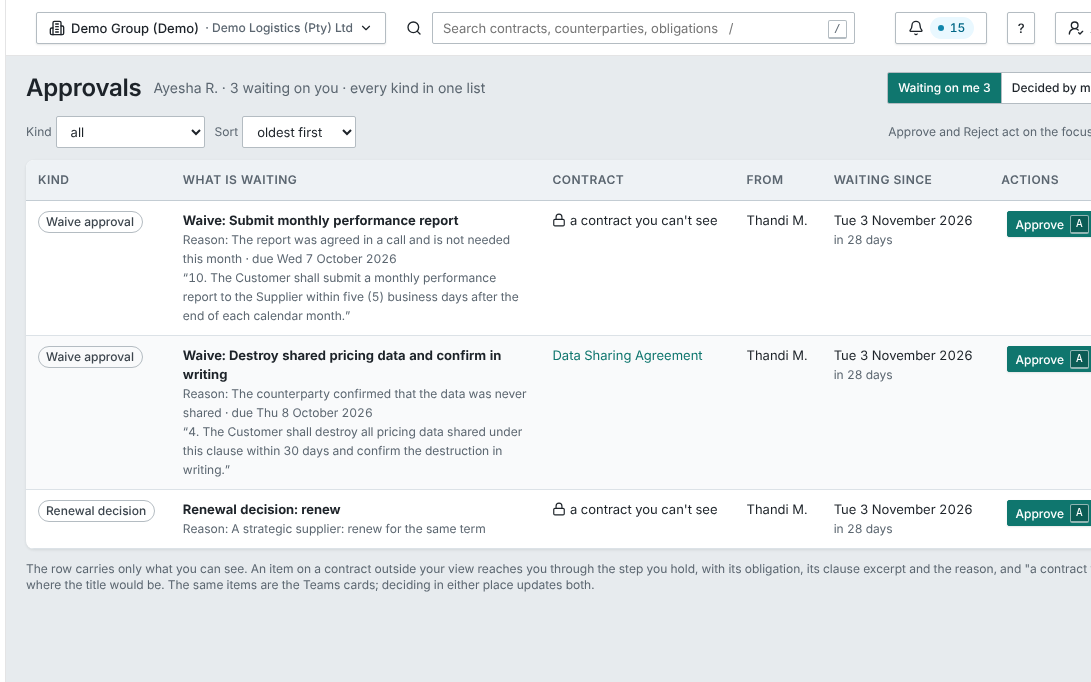
One list of approvals
Waivers and renewal decisions waiting on you, every kind in one list.
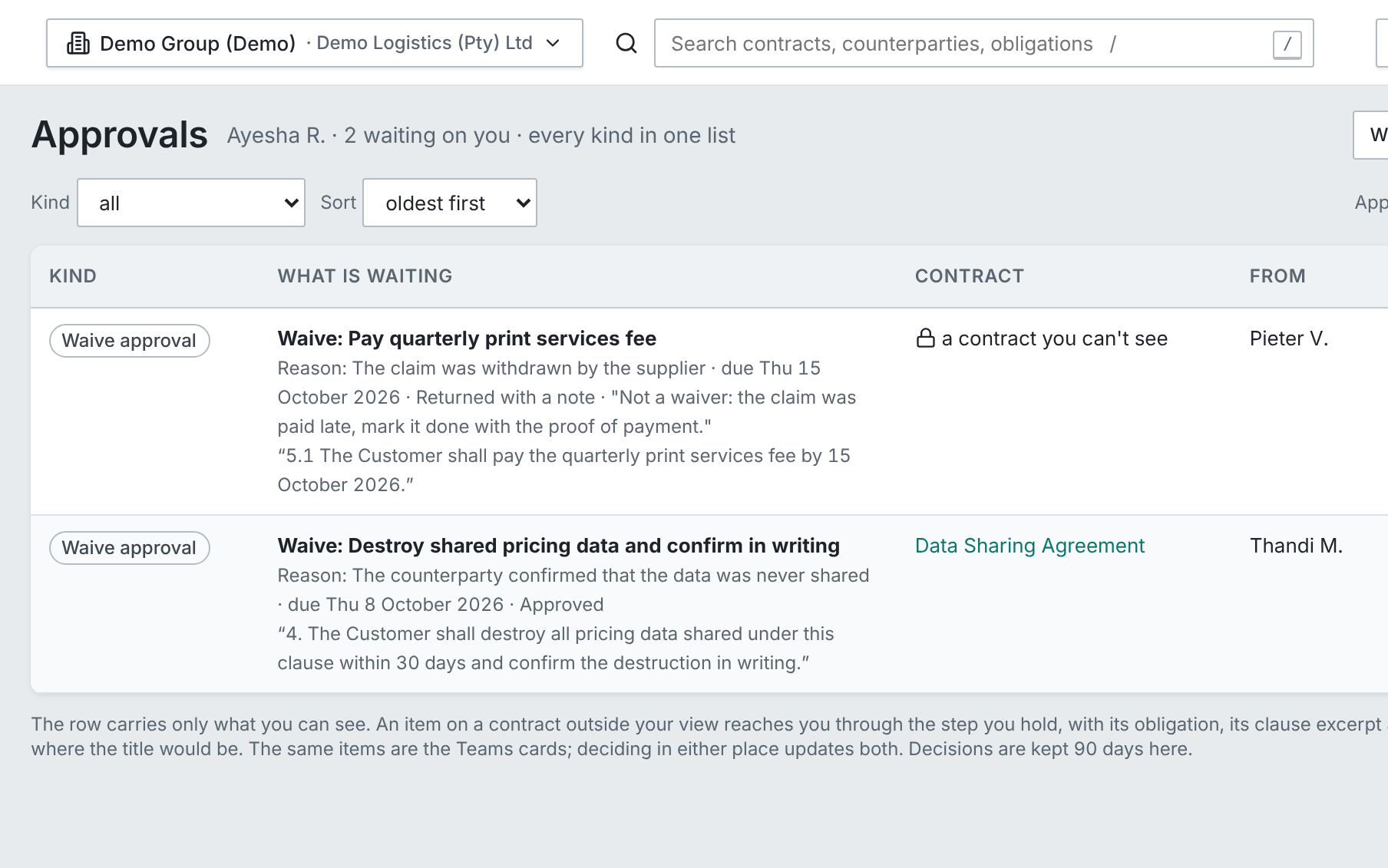
The decision, who and why
Each decision is recorded with who made it and why, and a rejection goes back to the person who asked, with a note.
1 of 4
Approval steps on waivers and renewals.
Optional approval steps per contract type and value band, with a role as approver, and an Approvals inbox: Waiting on me, Decided by me, Sent by me.
The problem: waivers and renewals that need sign-off.
EnterpriseApprove in Microsoft Teams.
Cards for approvals, verification and My obligations, with access checked at the click. The Teams app is set up per customer at go-live.
Enterprise
Requests, templates and the clause library
Anyone can ask for a contract; Legal sees only what needs a lawyer.
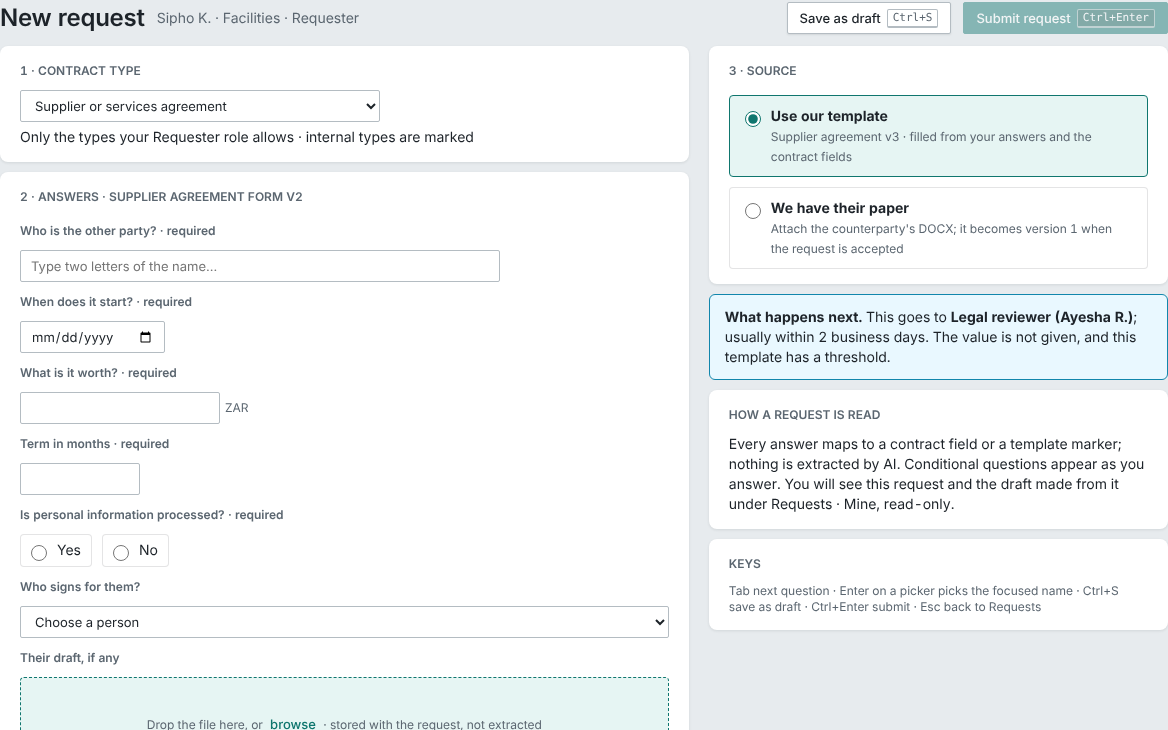
Ask for a contract
The form says who it goes to, and why, before you submit.
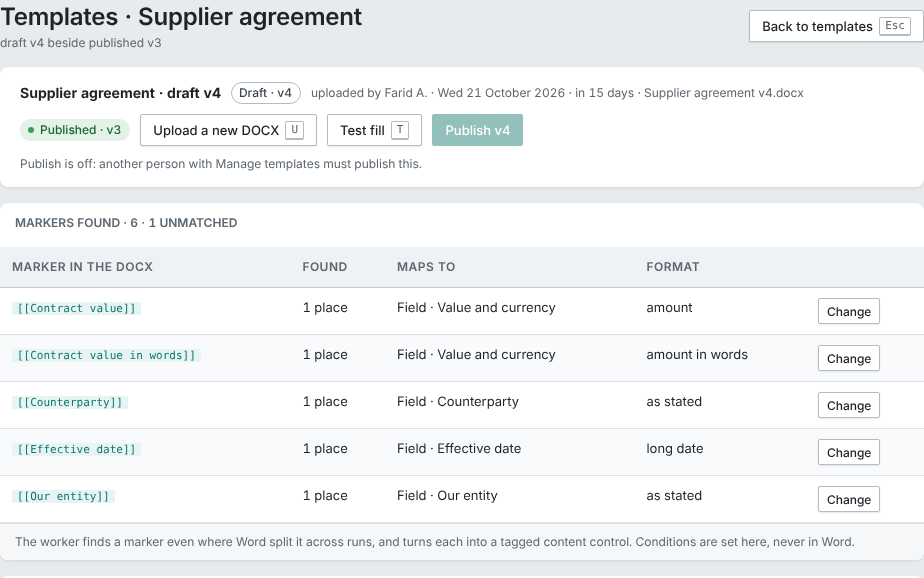
Word templates, checked twice
A Word template is published only when every field is filled correctly and a second person approves it.
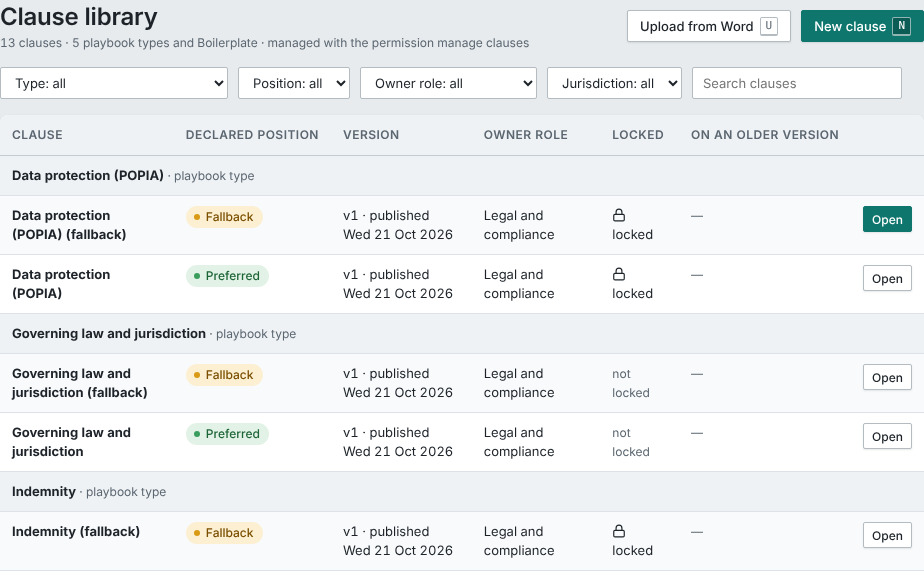
Your approved wording, by clause
Approved wording by clause type: preferred and fallback, versioned, owned by a role, locked where it matters.
1 of 3
A request form for every contract type.
A request form per contract type. Any employee requests for free, and the form says before Submit whether it is drafted now or goes to Legal, and why.
The problem: “Can I get an NDA?” by email.
EnterpriseLow-risk contracts draft themselves.
A self-service template drafts at once when every answer is given, the value is under the threshold and nothing deviates. Everything else goes to a legal queue with an SLA.
The problem: low-risk contracts clogging Legal.
EnterpriseTemplates checked before publishing.
A Word template is published only when every field is filled correctly and a second person approves it.
The problem: templates that drift.
EnterpriseA clause library of approved wording.
A clause library by clause type, with preferred and fallback positions, owner role, lock and versions. Insert or replace a clause from the draft.
The problem: approved wording that lives in someone’s inbox.
Enterprise
Drafting in Word
Word stays the editor. CMX compares, locks and keeps the numbers clean.
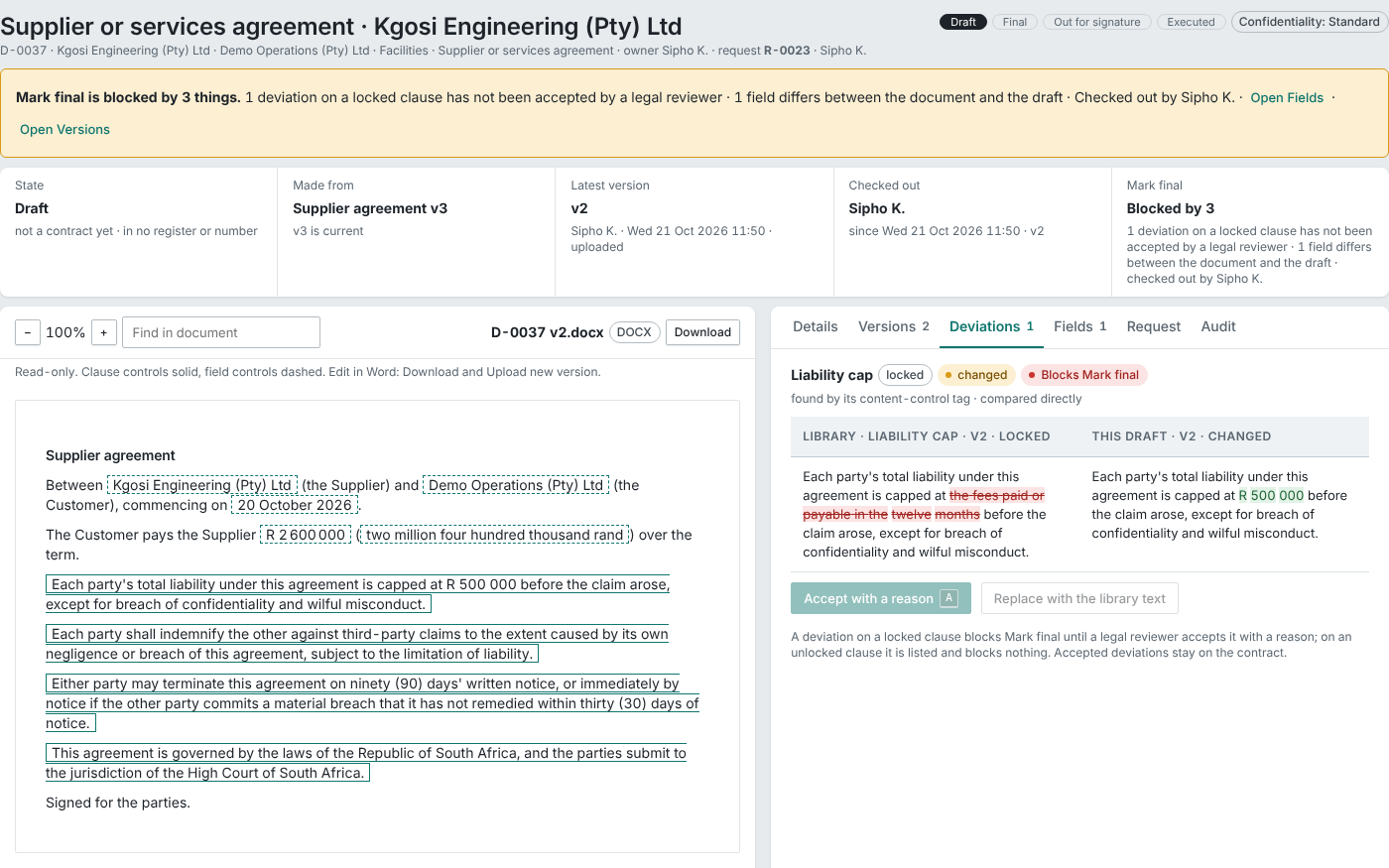
Every changed clause is listed.
Each version uploaded is compared clause by clause with the library. A change to a locked clause stops the draft being finalised until a legal reviewer accepts it with a reason.
The problem: not knowing what was changed.
EnterpriseOne editor at a time.
Editing is in Word by check-out: Download takes the lock, upload releases it.
The problem: two people editing the same file.
EnterpriseDrafts stay out of the numbers.
Contracts before signature never count in any number, feed or answer. They live in Requests, Drafts, Signing and the Pipeline view.
The problem: drafts that pollute the numbers.
EnterpriseAgreements between your own companies.
A contract type marked internal: every party is one of your entities, with internal signers only.
The problem: internal agreements with no counterparty.
EnterpriseThe PDF matches the Word file.
The PDF is made through your Microsoft 365 when it is connected; otherwise it is checked word for word against the Word file and confirmed by the sender.
The problem: PDFs that don’t match Word.
Enterprise
Electronic signature
Electronic signature inside CMX, as the ECT Act recognises it: a secure link, a one-time PIN, consent and the evidence attached to the executed PDF. Where a document must be signed by hand or with a certificate, sign it outside CMX and upload the signed copy: CMX compares it with the final version, flags any change other than signatures, initials and dates, and runs its obligations like any other contract.
A contract type can be set to need a certificate signature. CMX keeps it out of electronic signing; sign it outside CMX and upload the signed copy.
The signer signs in one place
The signer reads to the end, types or draws a signature, agrees to sign electronically and signs. CMX records the time, IP address, device and PIN proof.
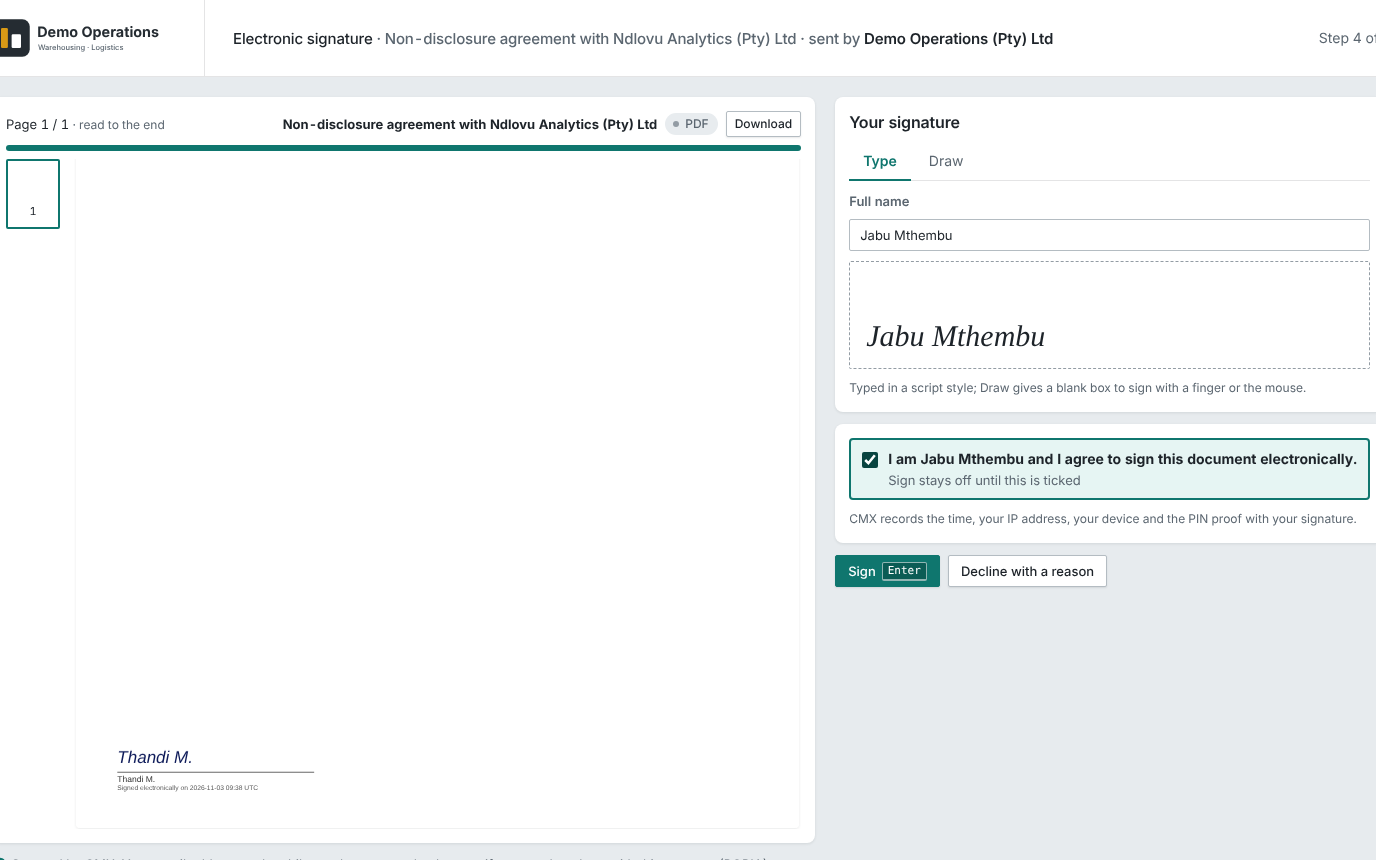
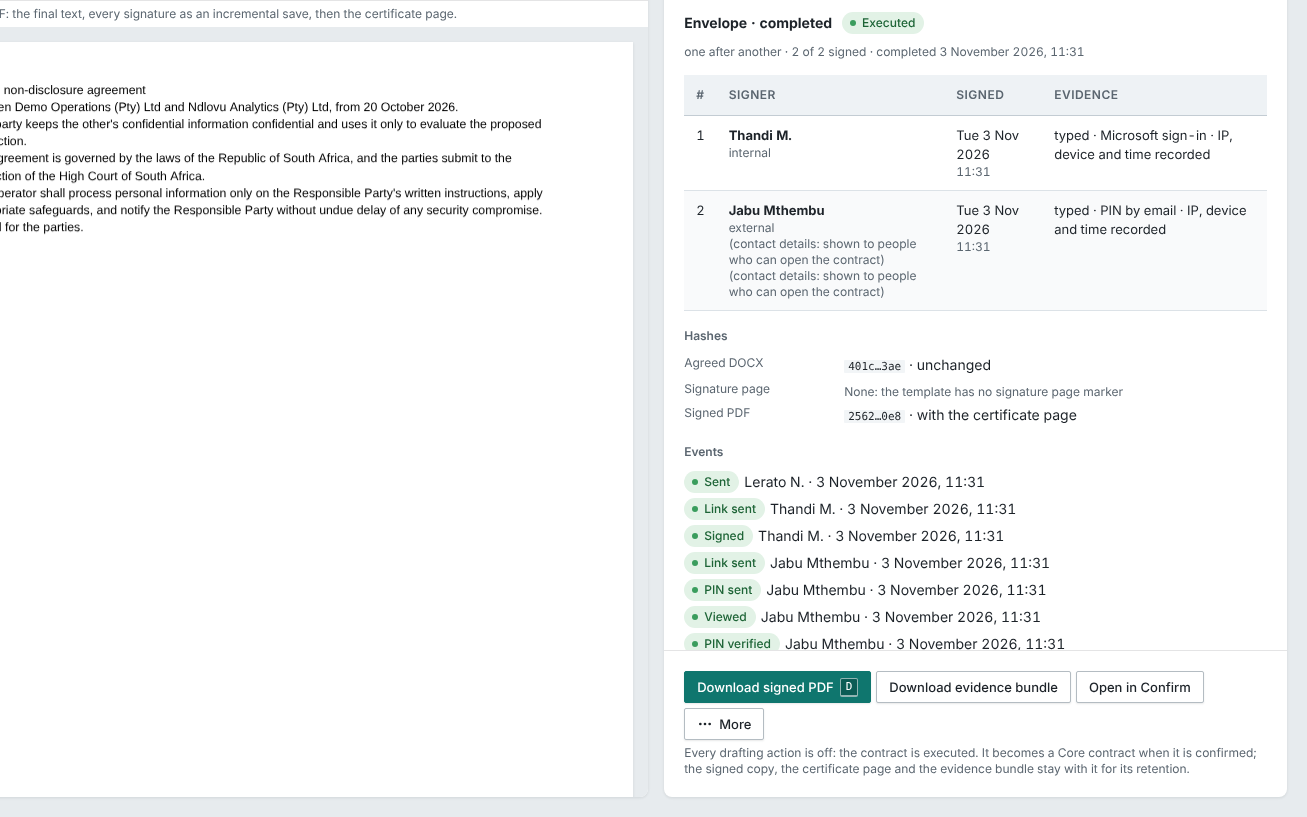
The signing evidence, kept
Every signer, method and event is kept with the executed PDF.
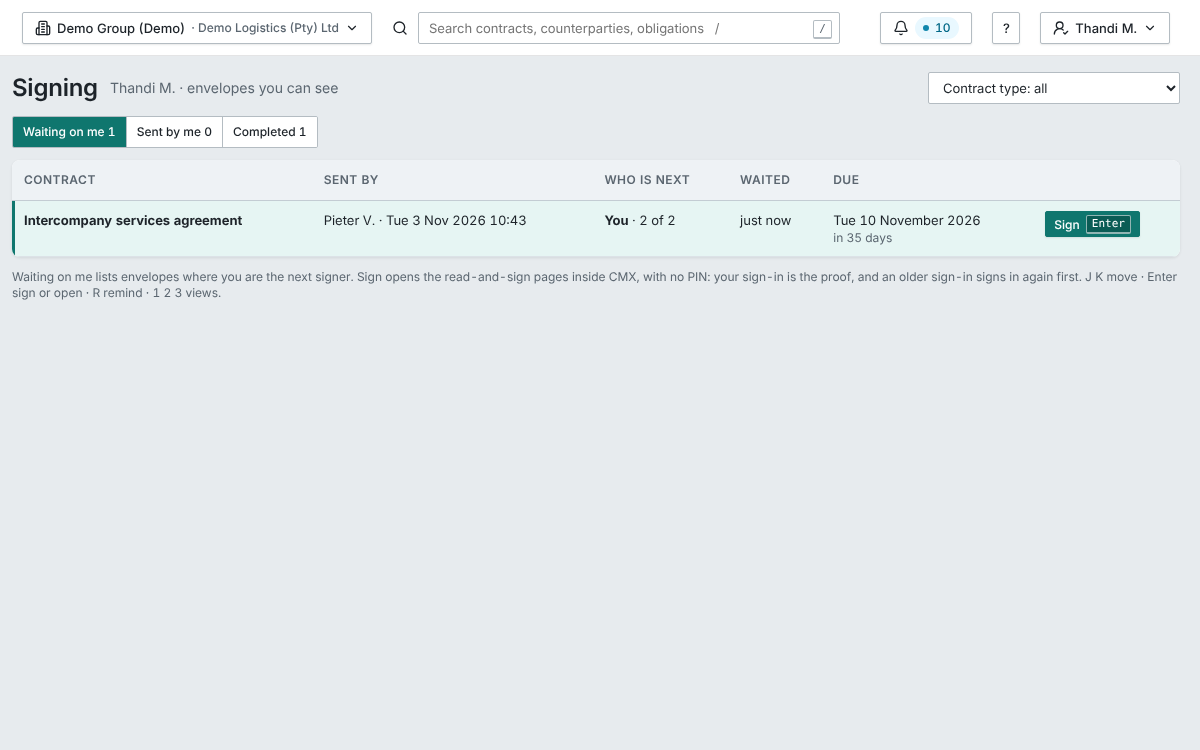
Documents waiting for you
Waiting on me lists the documents sent for your signature next.
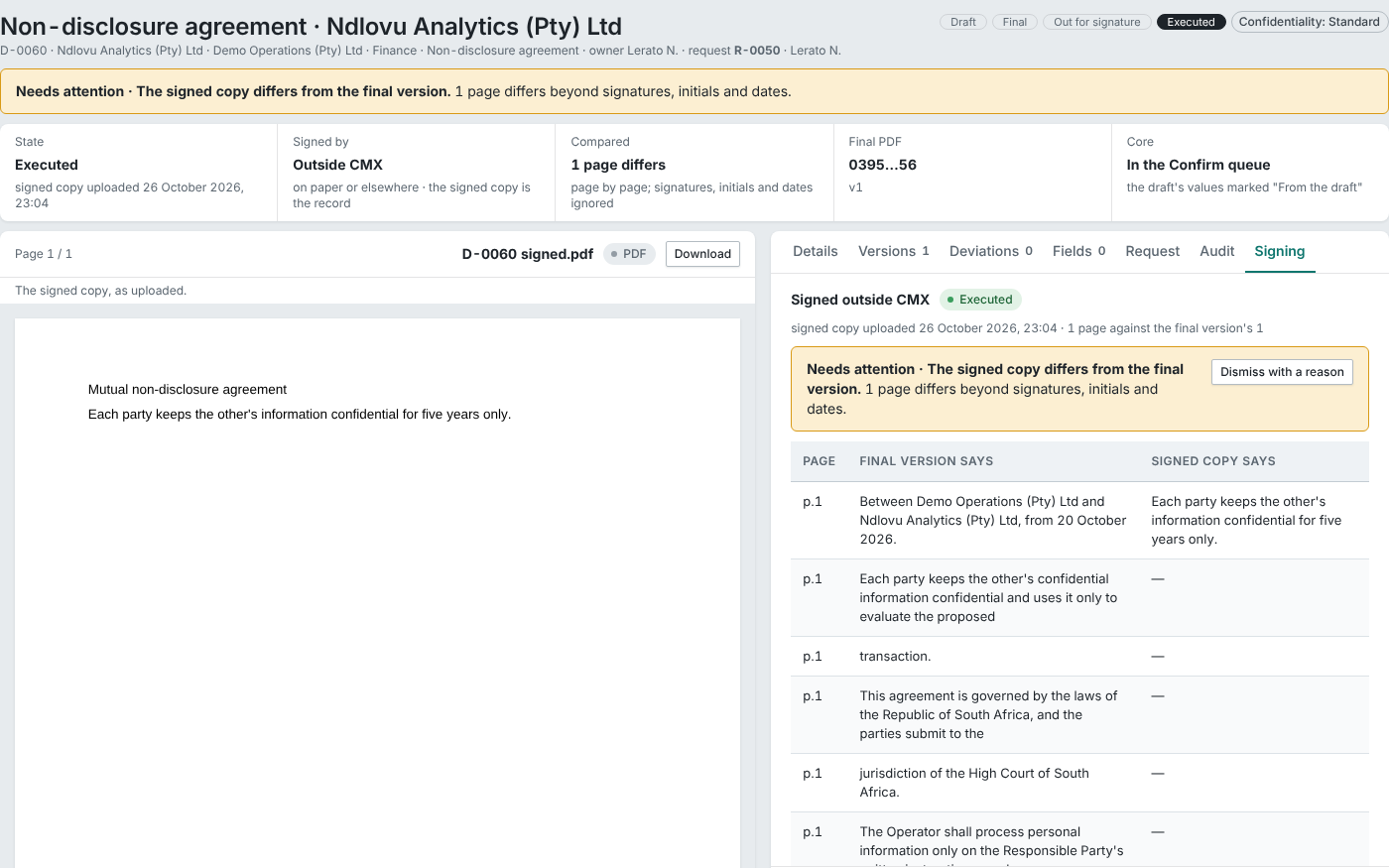
Signed outside CMX, compared
A copy signed outside CMX is compared with the final version. Any change beyond signatures, initials and dates is flagged.
1 of 4
Signing inside CMX, no fee per signature.
Send for signature from a final draft: internal and external signers, in order or together, with due dates and reminders. No fee per signature.
The problem: a fee per signature, and another portal.
EnterpriseOutside signers need no account.
A secure single-use link and a one-time PIN by email. The signer reads to the end, consents, types or draws, or declines with a reason.
The problem: outside signers made to create accounts.
EnterpriseStaff sign with their own sign-in.
Staff sign inside CMX with their Microsoft or Google sign-in as the proof.
EnterpriseThe evidence travels with the PDF.
Signatures applied in order, an audit certificate as the last page and the executed PDF’s hash recorded. The evidence bundle downloads as a zip.
EnterpriseCopies signed on paper are compared.
Upload the signed copy: CMX compares it with the final version, flags any change other than signatures, initials and dates, and sends it to the Confirm queue.
The problem: contracts signed on paper anyway.
EnterpriseSigned contracts go straight to work.
On completion the signed PDF goes straight to the Confirm queue, and its obligations run like any contract’s.
The problem: signed, then forgotten.
Enterprise